KloudChat User Guide
KloudChat is an AI assistant your organization runs on its own servers. It answers questions, reads the documents you attach, and writes reports and slide decks. To see where the model that generates an answer runs, check the data boundary label in the model list.
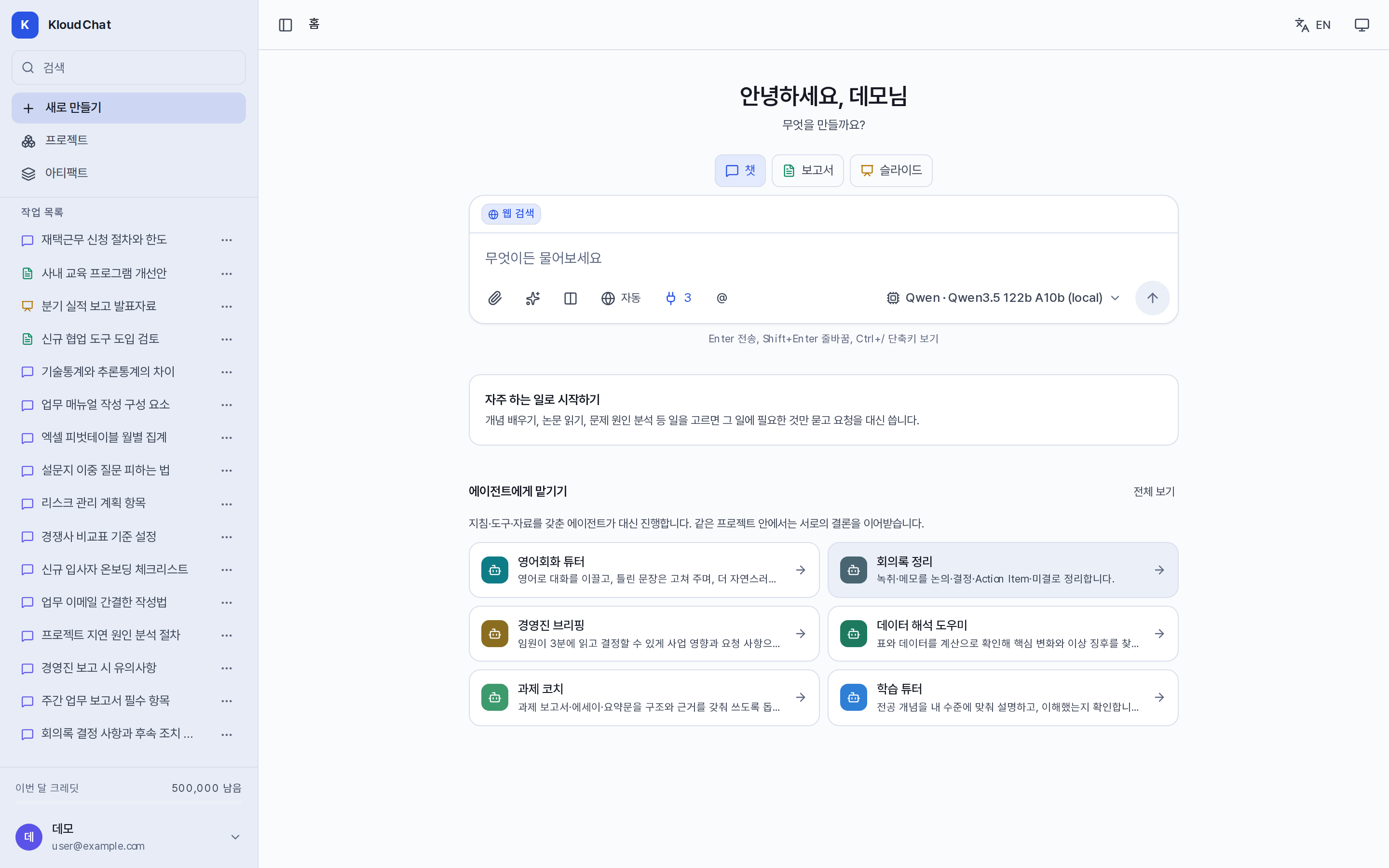
Guide pages by purpose
| Purpose | Feature used | Reference |
|---|---|---|
| Questions and answers, code review, proofreading | Home → Chat | Conversation basics |
| Getting answers grounded in a document you attach | 📎 in the composer | Attaching files |
| Getting answers based on up-to-date information | 🌐 in the composer | Web search and tools |
| Writing a report | Home → Report | Writing reports |
| Writing a slide deck | Home → Slides | Writing slides |
| Editing a finished document yourself and having it reviewed | The ribbon in the output panel | Output editor |
| Generating images, audio and video | Home → Image, Audio/Video | Images and audio/video |
| Passing an output on as a link | Share at the top of the conversation | Sharing |
| Grouping files and instructions for repeated use | Sidebar → Projects | Projects |
| Delegating to an assistant with a defined role | Hand off to an agent on Home, @ in the composer | Agents and skills |
| Starting routine work from a set form | ▦ Start a task in the composer | Starting points, formats and designs |
| Storing information you have to repeat often | Account menu → Memory | Memory |
| Calling models from external tools and code | Account menu → API access | API and coding tool integration |
| Checking usage and tidying up conversations | Account menu → Usage, Conversation history | Usage and conversation history |
Reading order
If you are new to the product, read Signing up and signing in, Home screen layout and Conversation basics in that order. If something goes wrong, Limits and troubleshooting helps you trace the cause from the message shown on screen. Terms you have not seen before are collected in Glossary.
:::info Items that depend on your installation This guide covers the full feature set of the product. The following items depend on your organization's settings, so check with your administrator if the screen differs from this guide.
- Available screens: Chat is always provided. Report, Slides, Image and Audio/Video appear only when the administrator enables them.
- Model list and charging: The models on offer, their names, data boundaries and credit rates differ between organizations.
- Sign-up method and email domains: The administrator sets the approval procedure and the permitted domains.
- Integrated features: Web search, code execution, dictation and file search work only when the administrator has connected a server.
- Service name and logo: The administrator can change these, so the names on screen may differ from this guide. :::