API and coding tool integration
You can call the models your organization runs from your own code or from a coding tool. The account menu has two screens, API integration and AI agent integration.
API integration
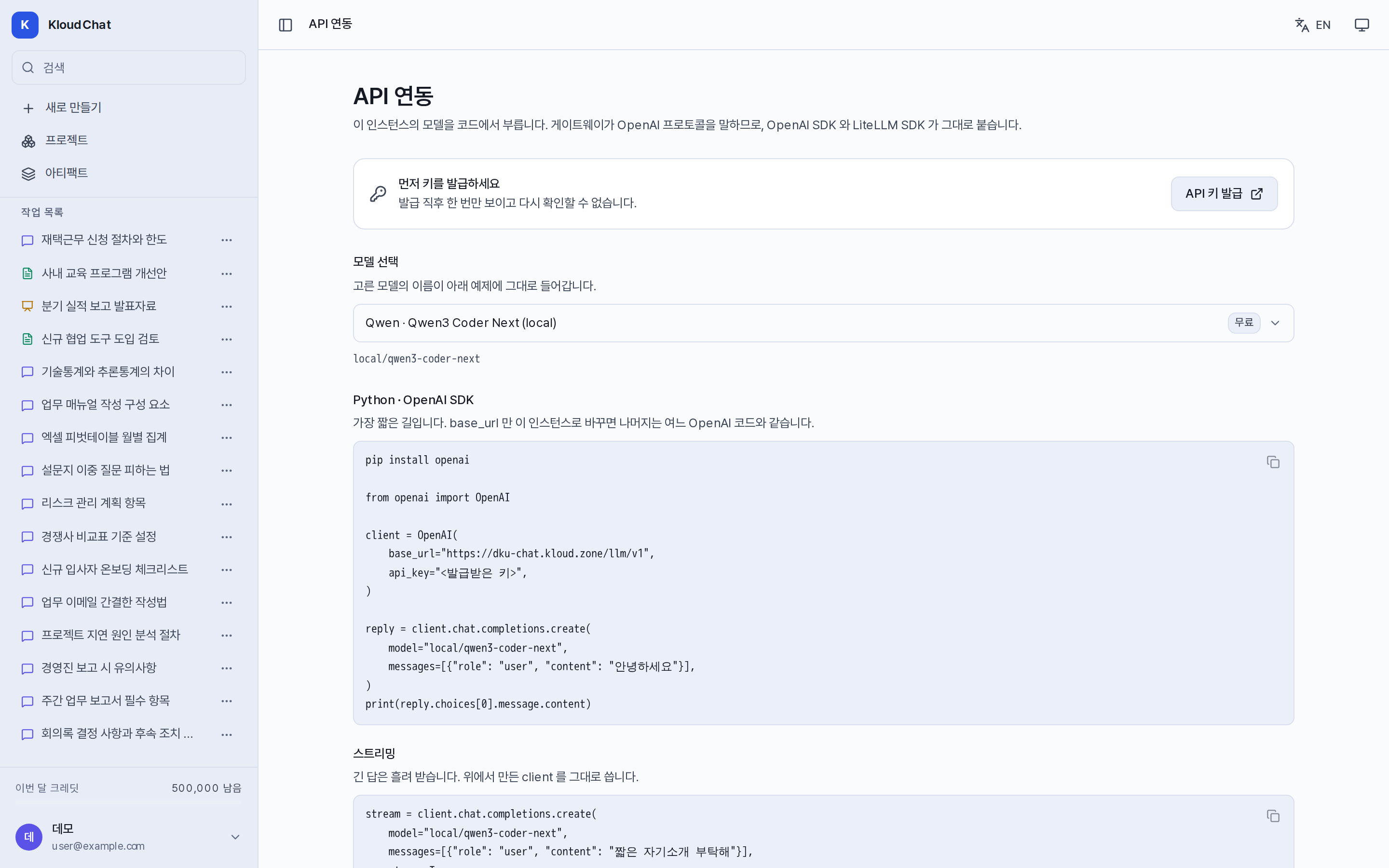
- Issue a key under Settings → API keys.
- Follow the examples shown on the screen. Examples are provided for the OpenAI SDK, streaming, the LiteLLM SDK (
openai/prefix), curl, and embeddings. - For the model name, use the id shown in the model list exactly as it appears.
# Linux / macOS, OpenAI-compatible
export OPENAI_BASE_URL="https://<service-address>/llm/v1"
export OPENAI_API_KEY="<your-api-key>"
# Windows PowerShell
$env:OPENAI_BASE_URL = "https://<service-address>/llm/v1"
$env:OPENAI_API_KEY = "<your-api-key>"
Usage is added to your account limit and is counted separately under By API key on the usage screen. Any allowed-model restriction set on the account applies to the key in the same way.
AI agent integration
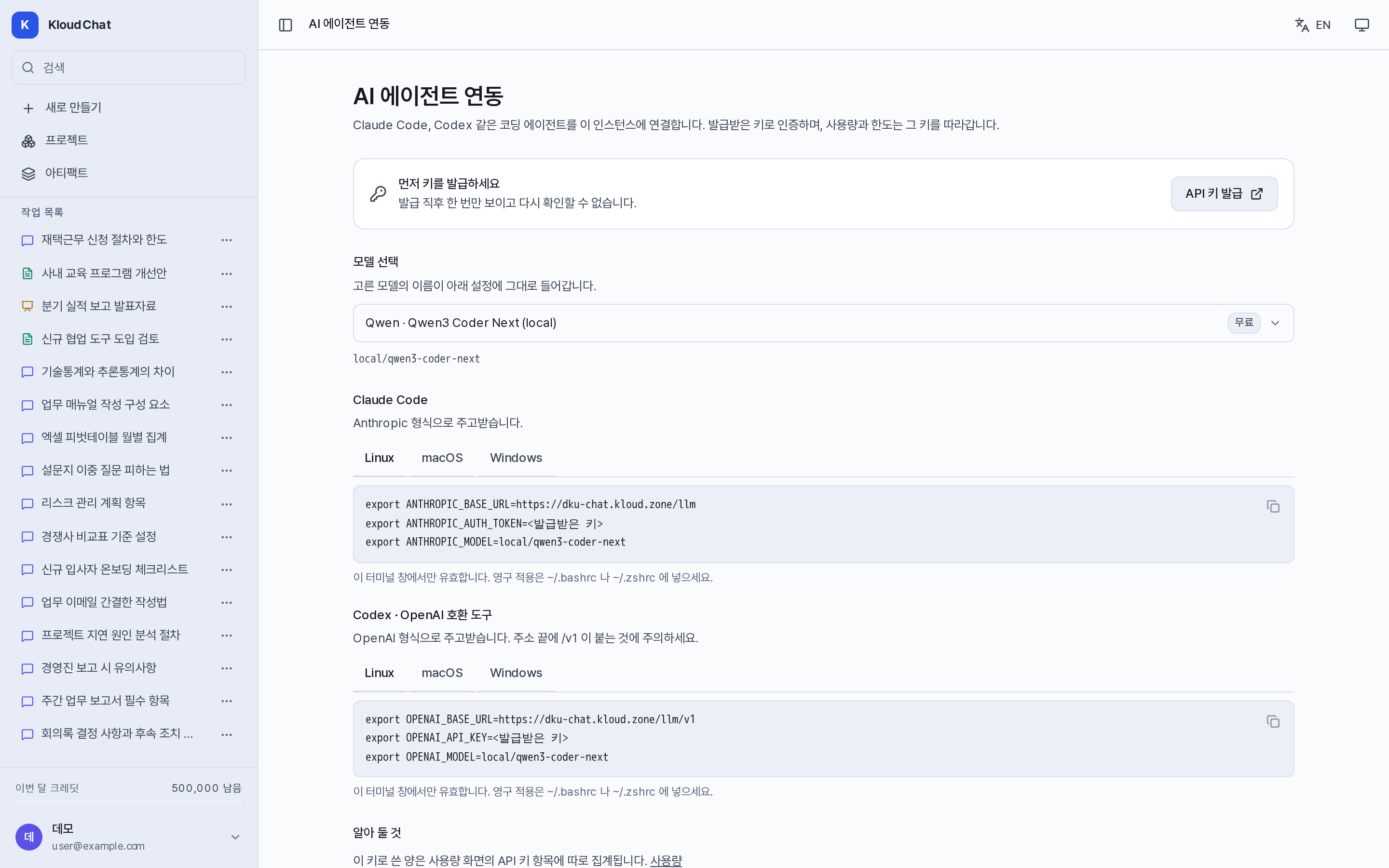
This screen explains how to connect coding agents such as Claude Code and Codex to organization models. Issue a key, choose a model, then copy the commands from the tab for your operating system (Linux · macOS · Windows).
| Tool | Environment variables |
|---|---|
| Claude Code | ANTHROPIC_BASE_URL=https://<service-address>/llm, ANTHROPIC_AUTH_TOKEN, ANTHROPIC_MODEL |
| Codex · OpenAI-compatible | OPENAI_BASE_URL=https://<service-address>/llm/v1, OPENAI_API_KEY, OPENAI_MODEL |
Note that the Anthropic-format address has no /v1 while the OpenAI-format address includes it.
:::tip Environment variable scope
export and $env: apply only to the current terminal session. To keep them, add them to ~/.bashrc or ~/.zshrc. If another project uses a separate OpenAI key, use separate terminals so that the values do not conflict.
:::
Key management
- The key value is shown only once, when it is issued. Issue a new key if you lose it.
- Discard keys you no longer use under Settings → API keys.
- Do not type a key into the conversation box or into a document.