Agents and skills
An agent is an assistant with a role, instructions, tools, and material already configured. Agents are designed for specific work, such as an English conversation tutor, a minute taker, or a paper reviewer.
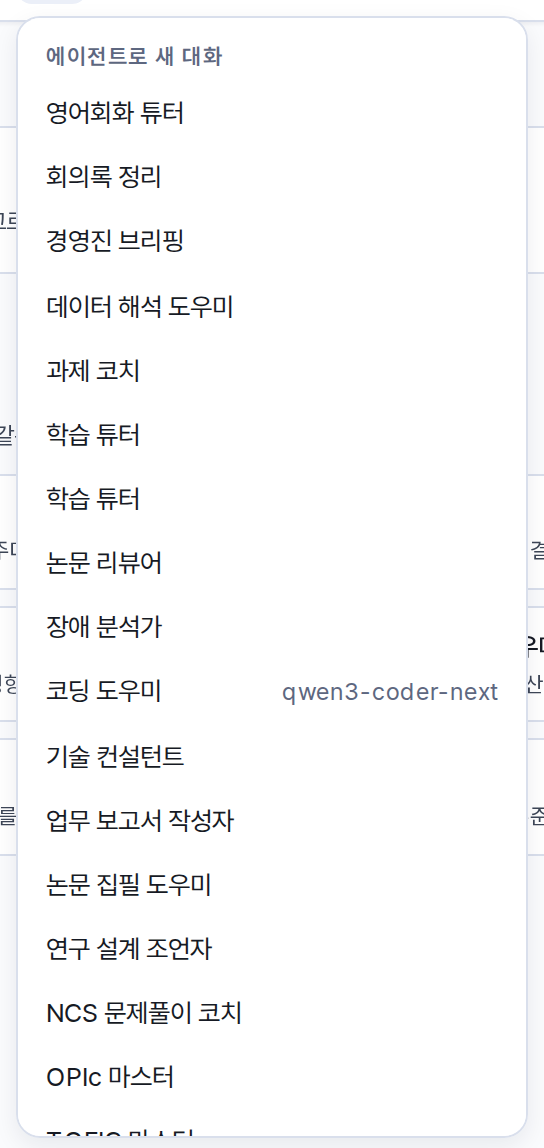
Starting a conversation with an agent
The Hand it to an agent card on the home screen, @ in the composer, and Run in the agent list all start a new conversation with that agent.
- The first screen of the conversation shows the agent's How to use text and its opening prompts, up to six of them. Select an opening prompt to send it as it is.
- An agent conversation uses the model, tools, and material set on the agent. When material is registered, the model searches it with the Find in files tool. Not all of the material is sent with every request.
- Within the same project, other conversations reference the conclusions that the agent left through Shared notes.
The built-in agents are as follows.
| Area | Agents |
|---|---|
| Learning and assignments | Study tutor, Assignment coach, Presentation coach, NCS practice coach |
| Research | Paper reviewer, Paper writing assistant, Research design adviser, Data interpretation assistant |
| Work | Business report writer, Executive briefing, Meeting minutes, Technical consultant, Incident analyst |
| Languages | English conversation tutor, TOEIC master, OPIc master |
Creating an agent
Go to the account menu → Agents → New.
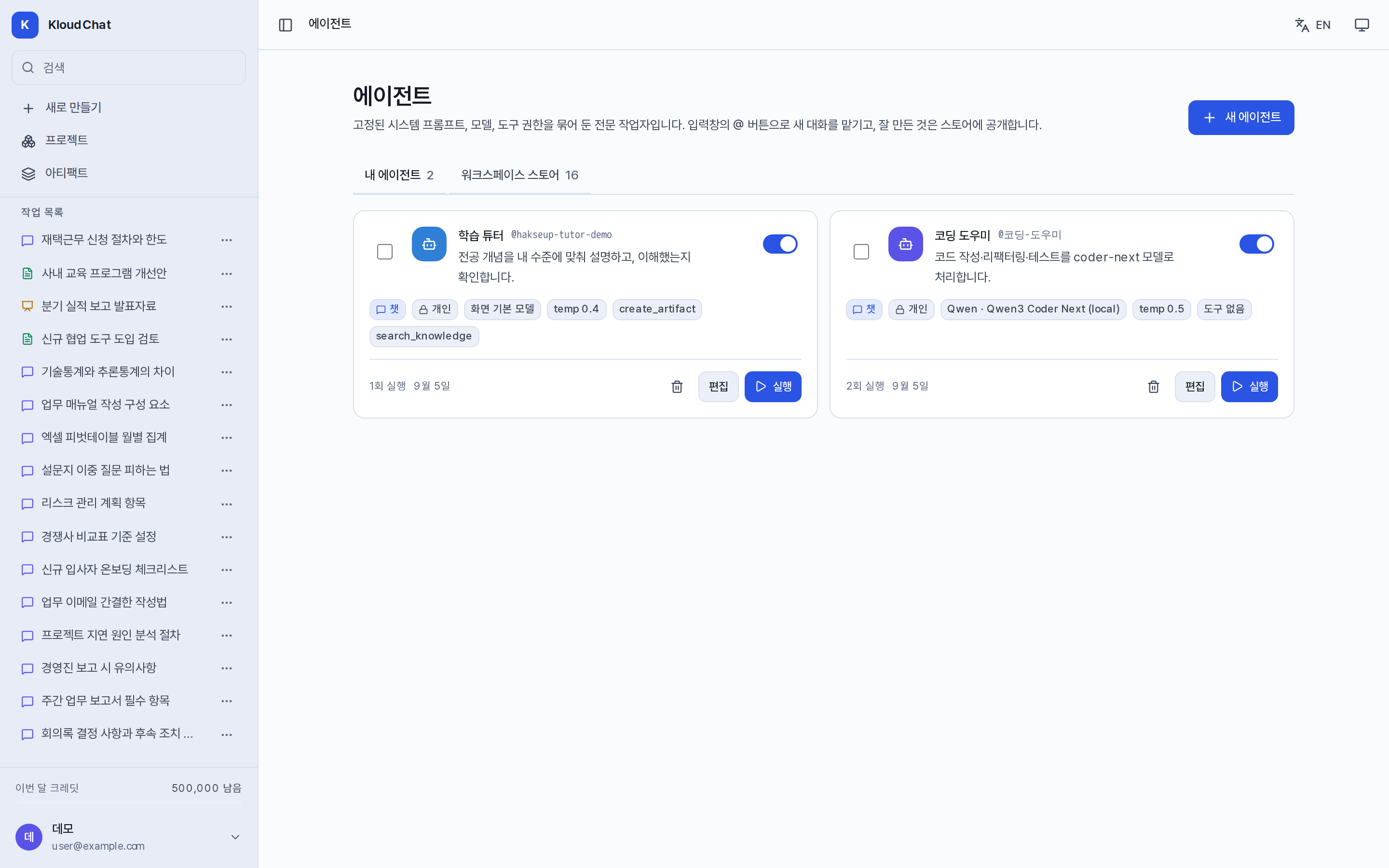
- Set the name, the description, and the screens to use it on, such as Chat, Reports, and Slides.
- Describe the role and the approach in the system prompt, then enter the How to use text and the opening prompts.
- Set the model (the screen default or a specific one), the temperature (Chat only), the tool permissions (inherit the user's tools, no tools, or choose directly), and the skills to connect.
- Upload files or register web addresses under Material. A web address stores the content as it was at registration. The index state (vector or keyword) is shown, and Index rebuilds the index.
- Choose the visibility, either Private to me or Public to everyone. If you publish it, choose either Others can copy and edit or Others can copy but the contents stay private.
The enable toggle suspends an agent temporarily. Deleting an agent also deletes its material and index, but existing conversations are kept.
Workspace store
The Workspace store tab in the agent list shows the agents that other users have published. An Official badge marks an item published by an administrator. Select Import to create a copy in your own list.
- A copy does not include the original author's skills and knowledge files.
- A copy of an agent published as "contents stay private" cannot be edited, and any change to the original applies to the copy as well.
- Other copies are managed independently, so a change to the original does not affect them.
Skills
A skill is a working method that applies to one request only. Select up to three from ✦ in the composer. They are cleared once you send. Installing a skill alone does not apply it. Available skills include citation formatting, calculation and unit checking, comparison tables, NCS condition and solution checks, paper structure, and one-page summaries.
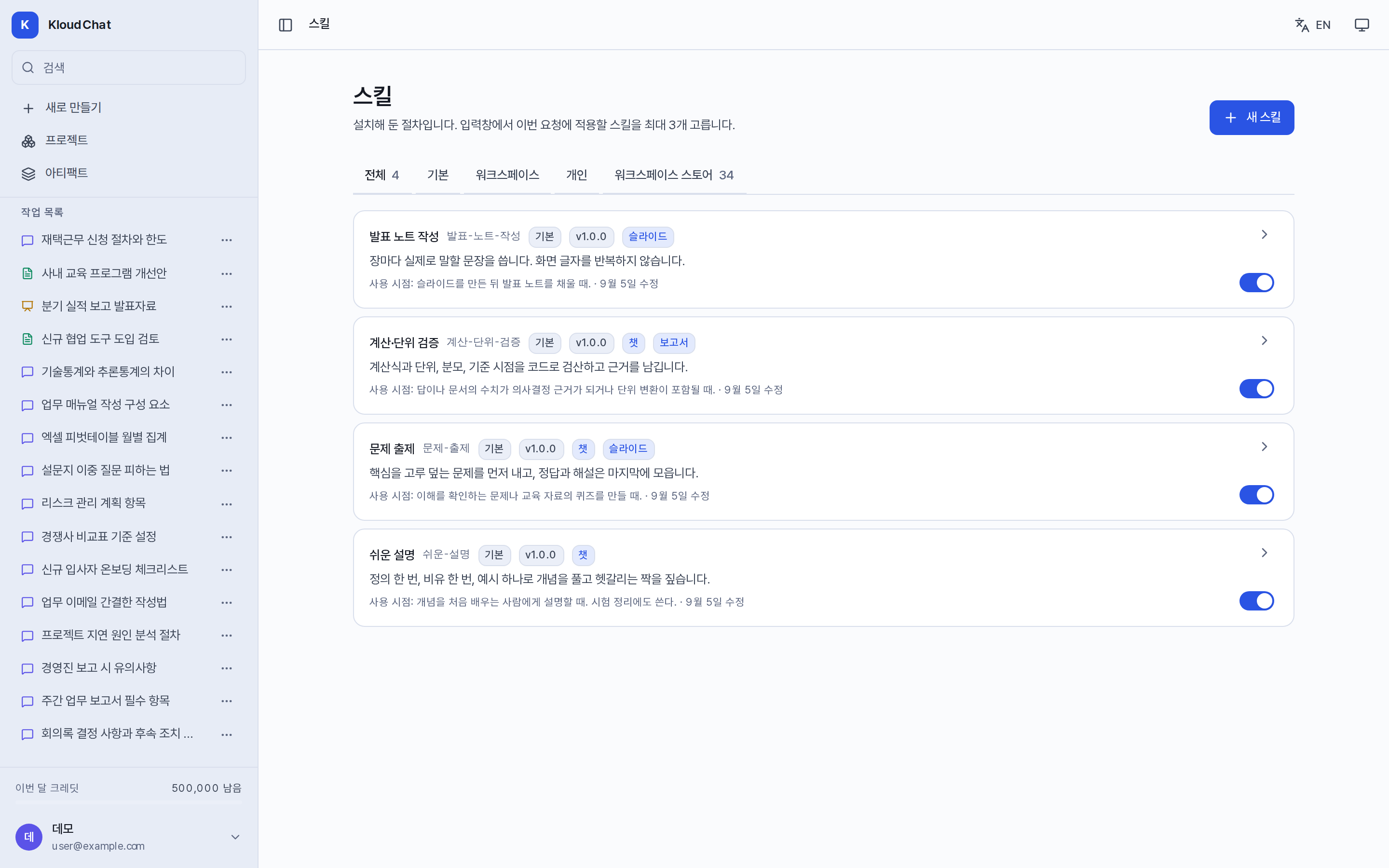
- Use the account menu → Skills to install a skill, stop using one, or build your own with a name, description, when to use it, steps, required tools, and visibility. A published skill is listed in the store, and other users import it as a copy.
- A skill that requires tools is enabled only when all of these hold: you are on the Chat screen, you are not running a model comparison, the model supports tool calling, and that tool is connected. When a condition is not met, the reason is shown.
- When you set Recommended skills on a project, they appear first in the composer of that project.