Conversation basics
On the home screen select Chat, enter a request, and press Enter. The answer is generated in real time. If you turn streaming off in settings, the answer appears all at once after it is complete.
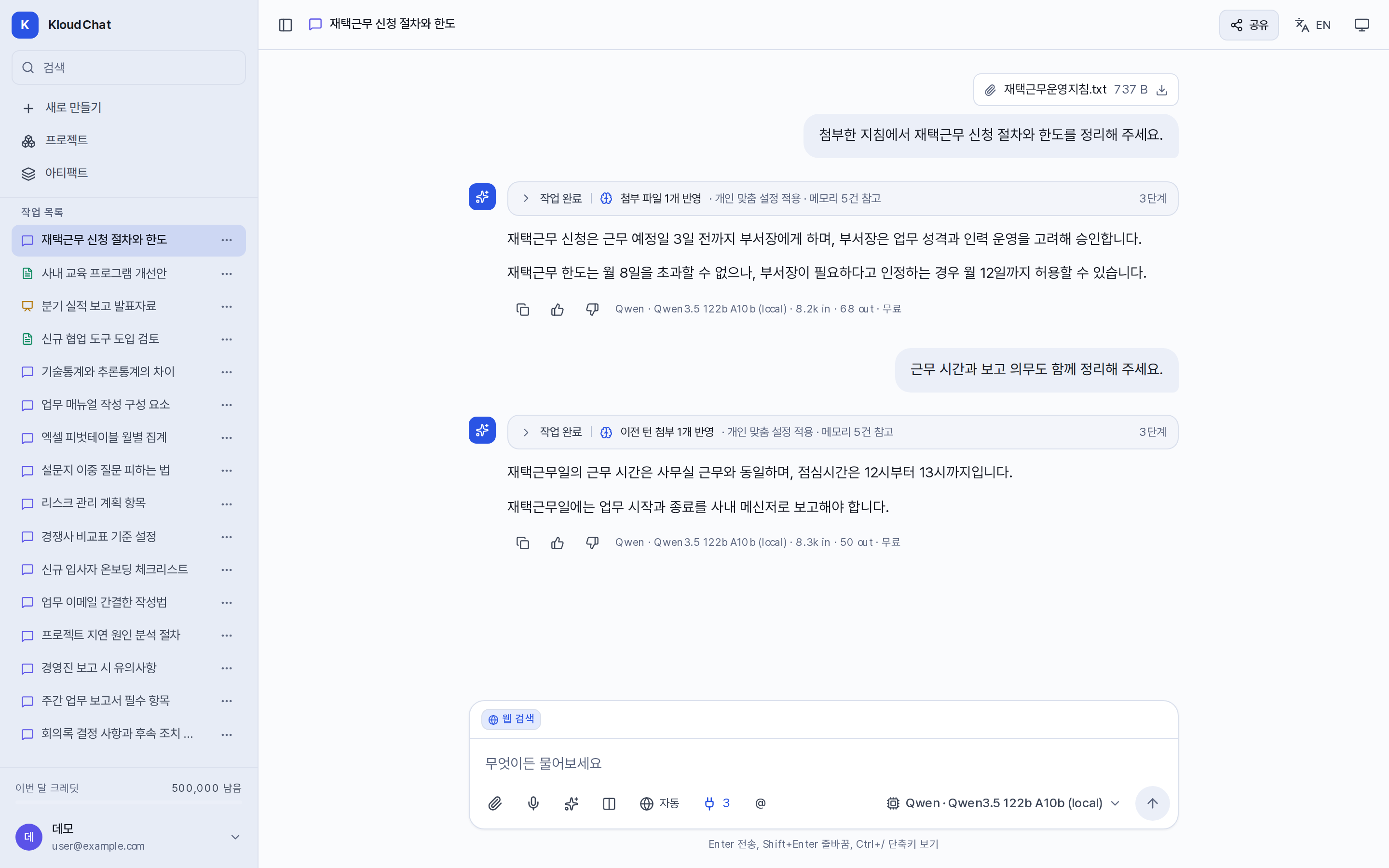
Parts of an answer
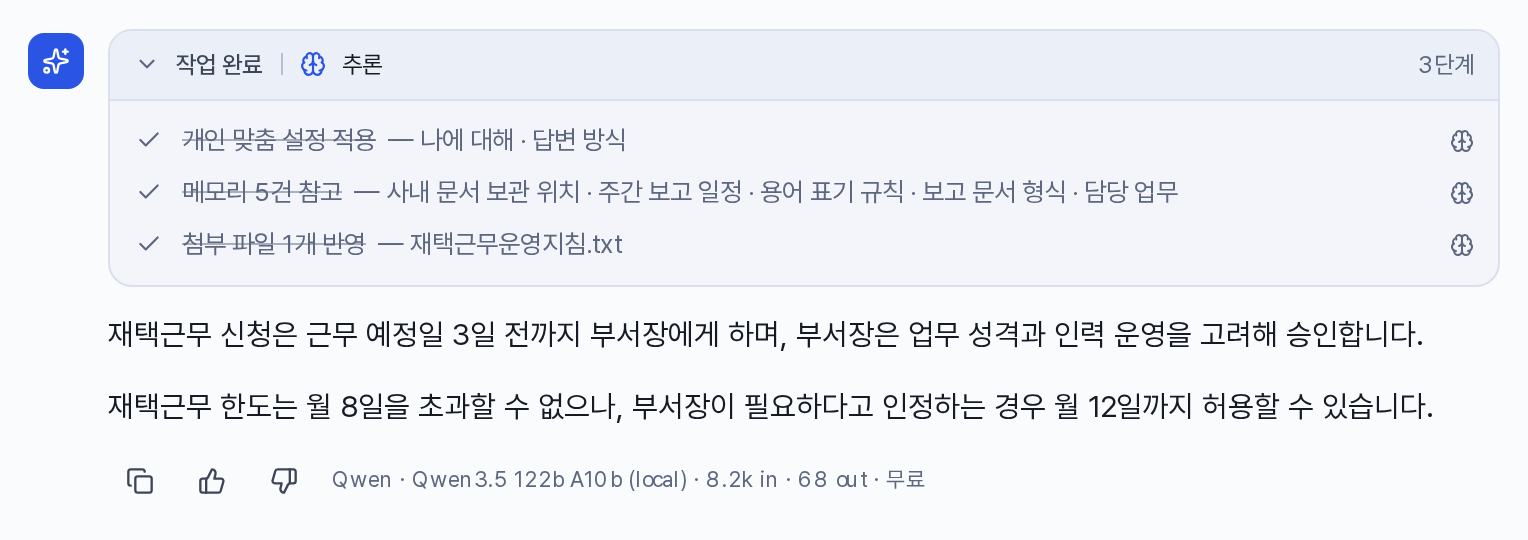
| Element | Details |
|---|---|
| Processing complete · N steps | The items referenced while the answer was generated. Expand it to see steps such as using attachments, carrying over attachments from earlier turns, applying personalization settings, referring to memory, searching the web, reading documents, running code, and searching files. Files that were truncated or could not be read also appear here. |
| Processing detail badge | Shows whether Auto switched the model, whether personal data was masked, and which model actually answered. On mobile it collapses to "n processing details". |
| Usage line | Shows the model name, input and output tokens, and credits. Free models are marked Free. You can hide this line in Settings → Preferences. |
| Sources | When a web search runs, numbers in the form [1] appear in the text and a source list appears below it. |
Copy and rating (👍 · 👎) buttons sit below the answer.
Stopping and resuming generation
While an answer is being generated, the send button changes to ■ Stop. If you stop, the content generated so far is saved and usage is recorded as an estimate. Generation continues on the server even if you close or refresh the browser tab, so you can return later and see the finished answer.
When generation fails
The answer area shows Retry and Another model buttons. Another model applies a different model to that request only.
Editing a sent message
In Chat, select Edit message (the pencil icon) next to a message you sent. The composer shows Edit message · New conversation and fills in the original text and attachments. When you send the edited text, the answer is generated in a new conversation that copies everything before that message. The original conversation stays as it was. Use Cancel edit or Esc to stop editing. You cannot edit while an answer is being generated.
Keeping conversation context
Within the same conversation, earlier questions, answers, and attached files stay available. Short follow-ups such as "So what happens next?" or "Explain that in more detail" work fine. When the topic changes, start a new conversation with New. Earlier context does not mix in, so the answer is more accurate.
Dictating a request
Use the 🎤 button in the composer. It appears only where the administrator has connected a speech transcription server. There are two ways to use it.
| Method | What it does |
|---|---|
🎤 button or Ctrl+Shift+M | The recording is converted to text and placed in the composer. Edit it, then send. |
Hold Space in an empty composer and speak | The request is sent the moment you release the key. |
Recordings are not stored. If there is no microphone or no permission, the message "Microphone is unavailable" appears.
Managing conversations
- Use the
…menu on a sidebar item to rename, pin, remove from a project, or delete. The title is generated automatically after the first answer. - A new conversation with nothing sent is deleted automatically when you leave the screen.
- Deleting a conversation also deletes the outputs and share links created in it. Projects and memory are kept.
- To tidy up several conversations at once, use the account menu → Conversation history. Usage and conversation history
Adjusting answer length
KloudChat answers are designed to lead with the conclusion and to skip introductions, repeated explanation, and closing summaries. If you need a more detailed answer, add conditions such as "in detail" or "include examples" to your request. You can also describe the length you want under Answer style in Personalization.