Choosing a model
Select the model name to the right of the composer to open the list. When eight or more models are registered, a Find a model search box appears with it.
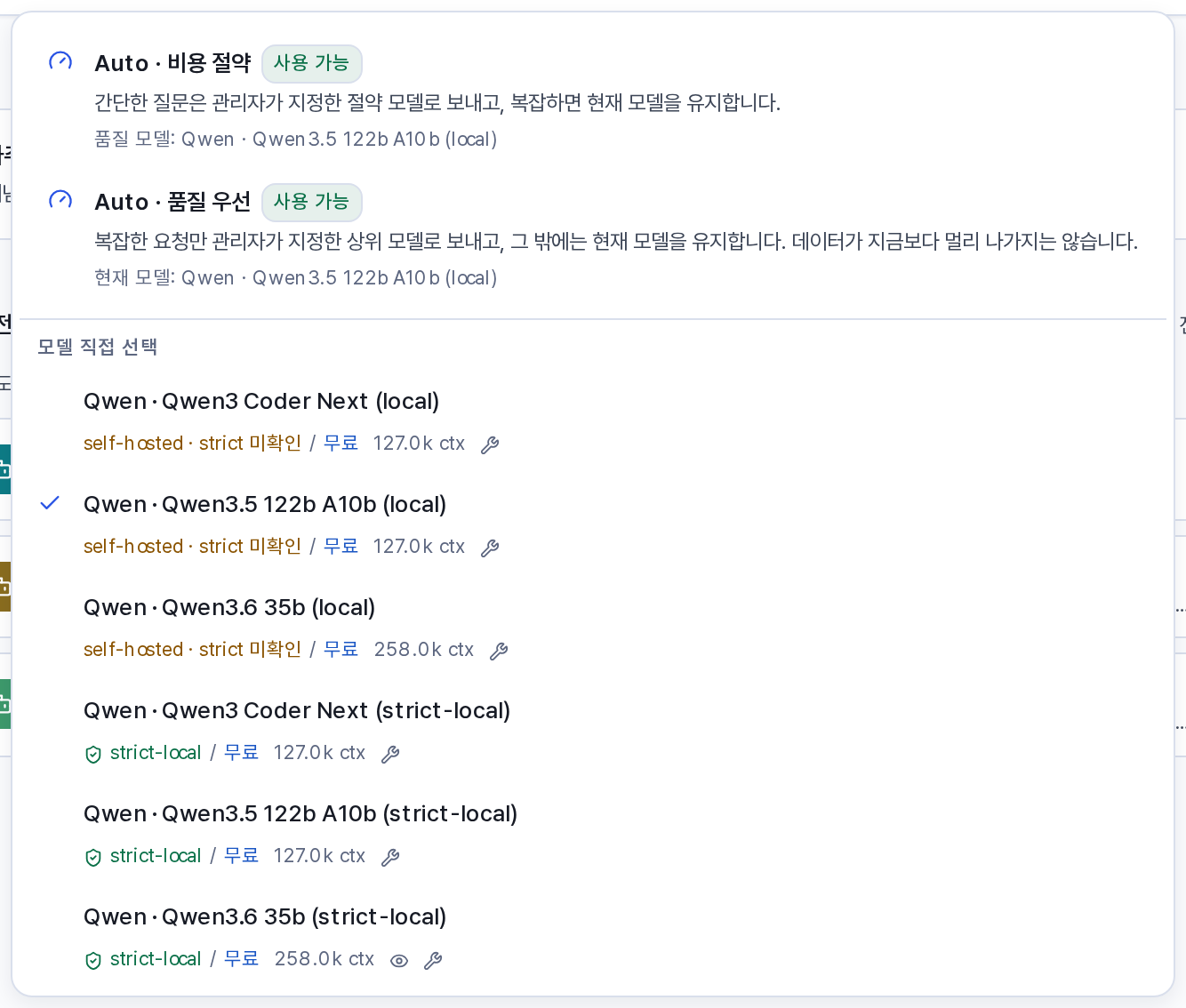
What the model list shows
| Label | Meaning |
|---|---|
| strict-local | The model is confirmed to run only on organization servers and to send nothing outside. Selecting it disables web search, page reading, and connectors. |
| self-hosted · strict unverified | The model runs on organization servers, but it is not confirmed that there is no external fallback path. |
| May switch to an external provider | The model normally runs on organization servers, but it may switch to an external service during an outage. |
| External provider | The model is supplied by an external service, so requests are sent outside the organization. |
| Boundary unverified | No information about the processing location is provided for this model. |
| Price | Input and output credits per 1,000 tokens, or Free |
| Context | How much can be processed at once |
| 👁 · 🔧 | Image recognition supported · Tool calling supported |
Depending on how the gateway registers models, one model name can appear as two entries that differ only in the data boundary label. Check the label before you select one.
Auto mode
When the administrator enables it on the Chat screen, two modes appear at the top of the list. These modes apply to the conversation, not to a model.
| Mode | What it does |
|---|---|
| Auto · Quality first | Only the requests judged complex switch to the higher model the administrator set. Everything else uses the model you selected. |
| Auto · Cost saving | Switches simple requests to a cheaper model. Everything else uses the model you selected. |
Auto does not apply to requests that use files, projects, agents, skills, web search set to On, or model comparison. Those requests use the model you selected. A badge above the composer then shows that Auto was not applied. Each answer also shows the reason for the decision and an estimate of the credits saved.
Scope of a model selection
- Selecting on the home screen saves the model to your account as the default model for that screen, such as Chat, Reports, or Slides. It applies when you sign in from another device, and you can also change it in Settings → Preferences.
- Selecting during a conversation applies to that conversation only.
- An agent conversation uses the model set on the agent.
- When the administrator limits which models an account may use, only the allowed models appear.
Model comparison
Turn on ⫼ Model comparison in the composer and select two or three models. The answers to the same question appear side by side. Credits are shown for each model. Select Continue with this answer below the answer you want, and the conversation continues from that answer.
During a comparison, web search and Auto do not apply, and skills that require tools cannot be used. Model comparison is not available on mobile screens.