Starting points, formats, and designs
These three features have similar names, but each has a different role and scope.
| Feature | Role | Where to select it | Scope |
|---|---|---|---|
| Starting point | A card that asks for the items a repeated task needs. It builds the request from what you enter. | ▦ Start a task, and "Start from something you do often" on the home screen | That request |
| Format | The form of the output. The product includes 11 report formats, 7 slide formats, and 14 image formats. | ▦ Start a task → Output format, and the account menu → Design → Formats tab | That conversation. Clear it with × on the chip |
| Design system | A setting that bundles colors, typefaces, and writing style. You link it to a project. | The account menu → Design | Every output in that project |
Starting points
Select a card and fields such as title, audience, and material appear above the composer. What you enter is added in front of your request. If a starting point requires web search or a file, that feature is turned on automatically, or a note appears asking you to attach the file. A starting point that includes a template file attaches that file automatically when you select it.
- 78 starting points are built in across Chat, Reports, and Slides. They include concept summaries, material reviews, root cause analysis, weekly reports, and meeting minutes.
- Create my starting point lets you set the name, description, category, input fields, examples, required features, instructions sent only to the model, and a template file.
- A starting point registered by an administrator is marked Shared.
- Some starting points, such as experiment records and weekly reports, do not invent figures that are absent from the material. They show (TBD) instead.
Formats
A format defines the structure rules and the typesetting of reports and slides. Select one and the What this format checks list appears. You edit a formatted document by rewriting it one block at a time, and you can export it as PDF, DOCX/PPTX, HWPX, HTML, or text. Formats are built into the product, so you cannot create new ones.
Design systems
Manage them in the account menu → Design.
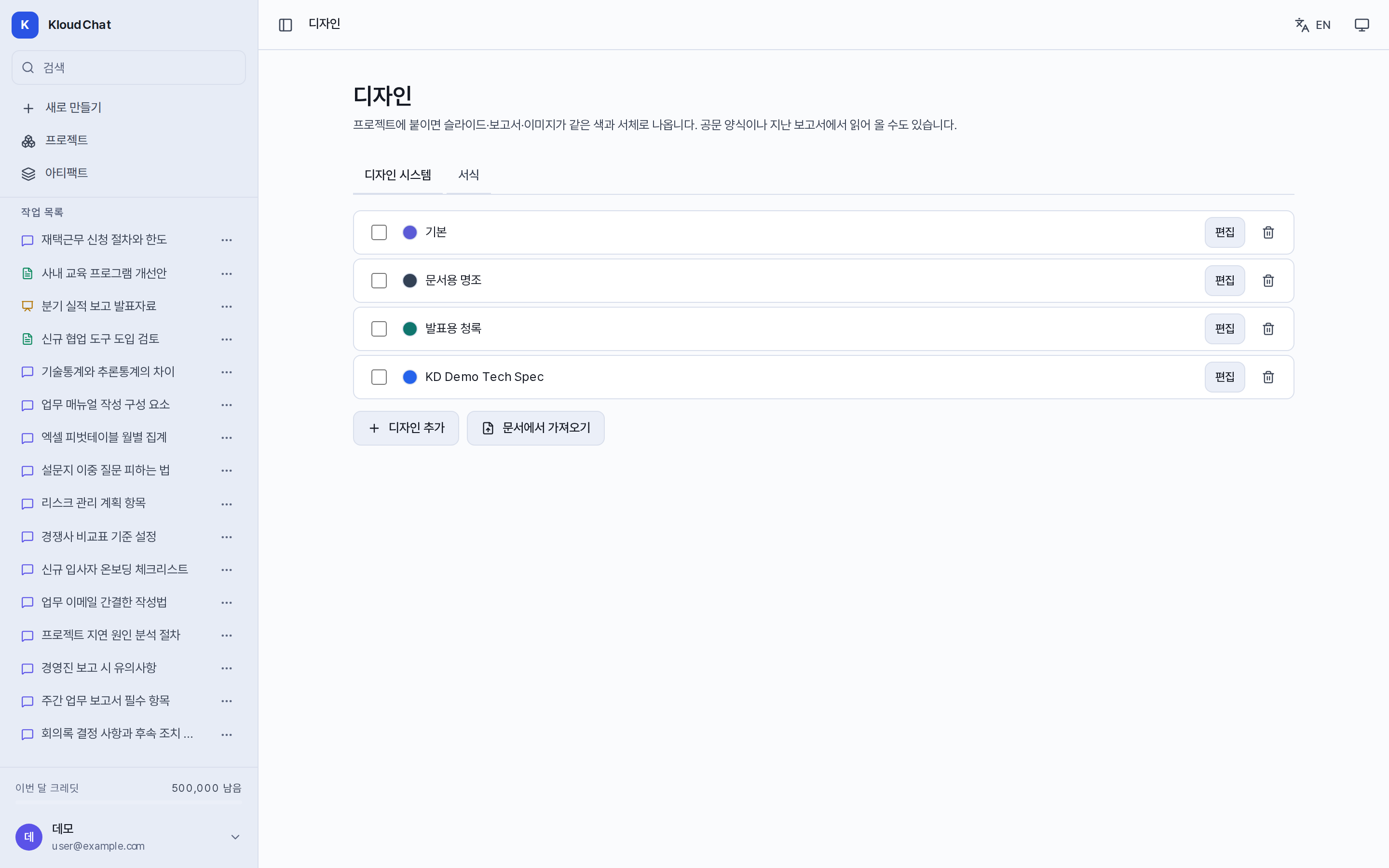
- Set the name, the accent color, the body color, the secondary color, the typeface (sans-serif or serif), the writing style rules, the image style, and the rules to apply alongside them.
- Import from a document extracts a draft from an existing hwpx, docx, or pdf file, or from a web address. It calls the model once, and you can review the content before saving.
- The writing style applies to conversations, reports, and slides. Colors and typefaces apply to slides and report covers. The image style applies to images. Nothing applies to audio and video.
- Design settings are copied into an output when it is generated. Changing the design later does not change outputs that already exist.
- An administrator can distribute a read-only shared design with Provide to all users.