Signing up and signing in
This page explains how to request an account and sign in, and how to manage your password and your devices.
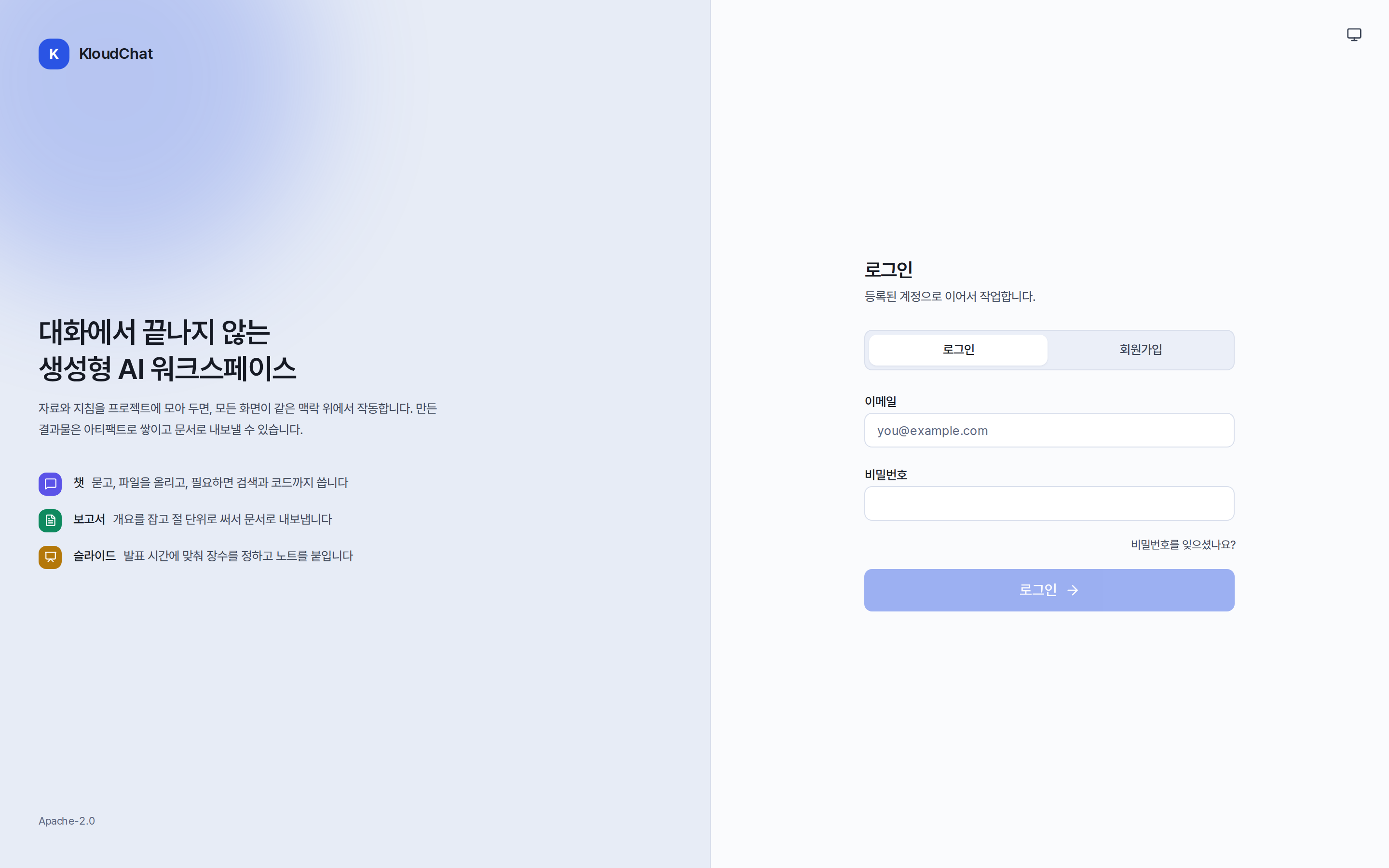
Requesting an account
- On the sign-in screen, select the Sign up tab.
- Enter your name, email and password, then press Request sign-up. The password must be at least 10 characters long and contain a number and a symbol. If the screen lists the addresses that may sign up, only addresses at those domains may apply.
- What happens next depends on the sign-up method the administrator has set.
| Sign-up method | Right after you apply |
|---|---|
| Use after approval | A waiting screen appears. It checks the status every 15 seconds and moves to the home screen automatically once you are approved. |
| Use immediately | You can start using the service right away, with no waiting. |
If pressing Request sign-up shows the notice "Sign-ups are not being accepted at the moment", ask your administrator to create an account for you. Where email verification is configured, a confirmation mail is sent. If it does not arrive, you can send it again after one minute.
Signing in
Sign in with your email and password. If you enter the wrong password five times in a row, sign-in is blocked for 15 minutes. While it is blocked, even the correct password will not sign you in, so try again after 15 minutes.
If your account is suspended, an information screen appears instead of the home screen. In that case, contact your administrator.
Resetting your password
If the sign-in screen has a Forgot your password? link, you can receive a reset mail. The link in the mail is valid for 30 minutes and can be used only once. When you set a new password you are signed in immediately and every session on your other devices is signed out. If the link is not shown, no mail server is configured in your environment, so ask your administrator to reset the password for you.
Changing your password and managing devices
- Changing your password: Account menu → Settings → Profile. Changing it signs you out on your other devices.
- List of signed-in devices and sign-in history: Settings → Security. For details, see Settings.
Automatic sign-out
Where the administrator has set an idle time, you are signed out automatically after that much time with no activity. When you connect again, the sign-in screen shows a notice that you were signed out automatically.
Interface language
Use the EN button at the top right to switch the interface language. The language of an answer follows the language you asked in, regardless of the interface language.