Writing reports
On the home screen, select Report and enter the topic of the report you want to write. If you have supporting material, attach it with 📎. When you attach material, KloudChat fills the figures in from that material instead of estimating them. Where a search server is connected, it searches the web before writing and cites the sources.
Step 1: Confirming the structure
KloudChat does not write the document right away. It proposes a structure first. If it lacks information it needs for writing, a Before we start card appears ahead of the structure and asks clarifying questions. Answer them, or select Proceed with the material available, and it moves on to the structure step.
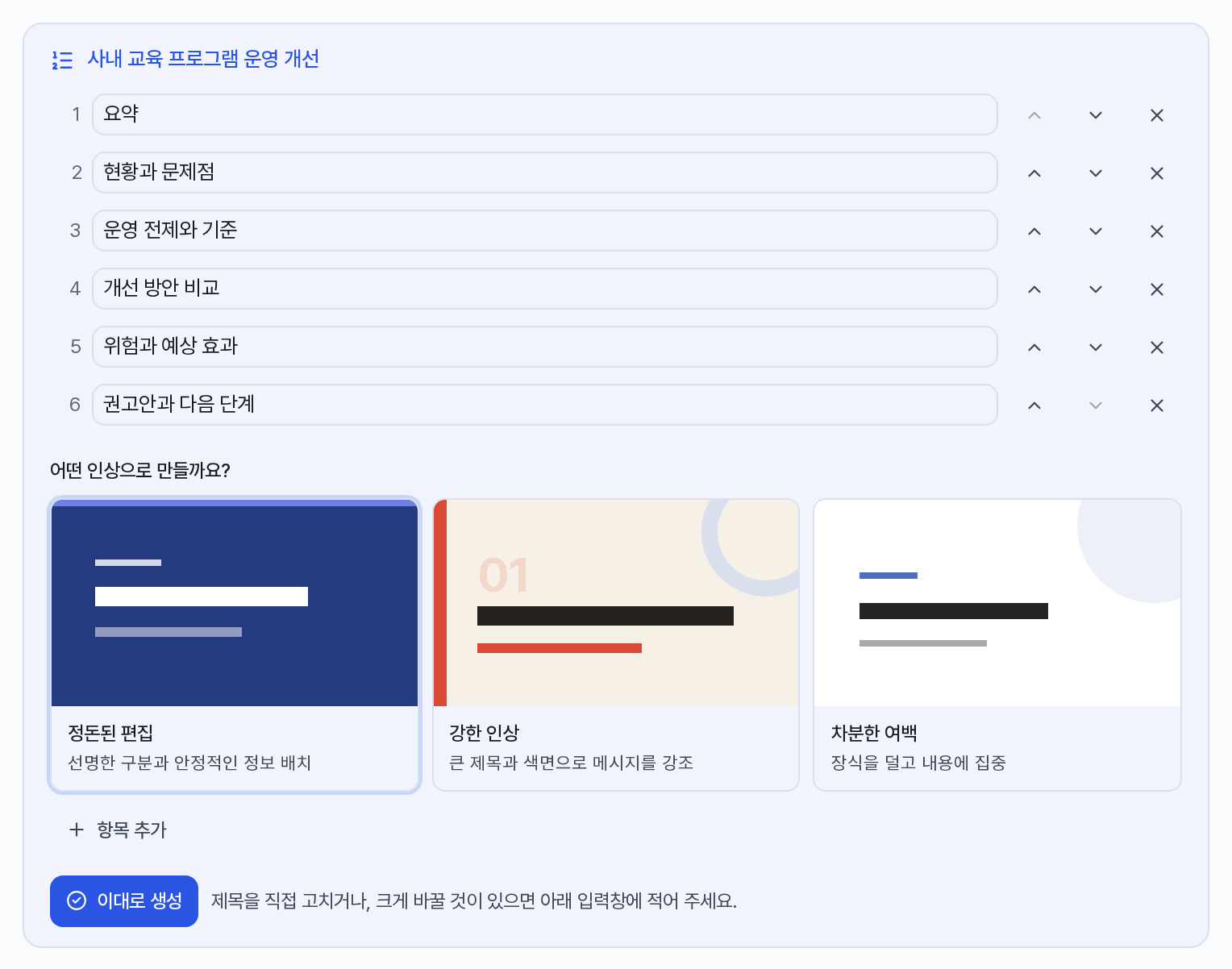
- You can edit section titles, change their order, and add or delete sections. After editing, Back to the proposal restores the original.
- The structure card covers content only. Choose the document design after writing, from Home → Design in the ribbon.
- Press Generate as it is, or Generate with my changes if you edited anything, and writing begins.
- If you type a sentence into the input box below the card, it proposes the structure again with that sentence as a condition. You can only approve it with the buttons.
- If the topic needs diagrams or pictures, an Add pictures? card follows. It tells you the number of pictures and the estimated credits. Diagrams are generated by the text model, so they do not consume image credits.
Step 2: Writing
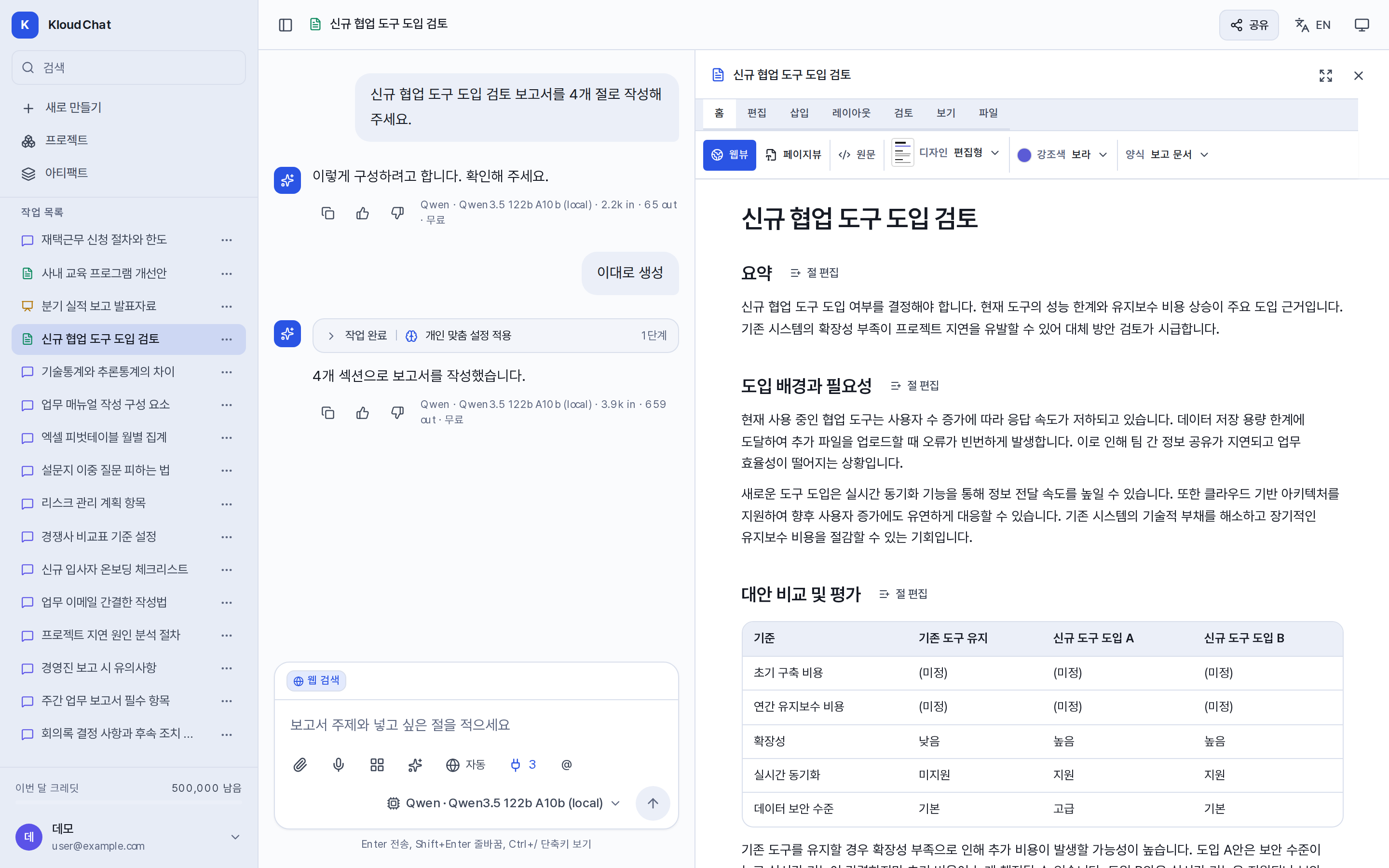
It writes section by section in order, and shows the first section in the right-hand panel as soon as it is complete. A section that fails is marked as failed, and writing continues for the remaining sections.
Step 3: Revising
Two methods are provided.
- Revise by request: type into the input box at the bottom of the document, for example "Cut section 2 in half" or "Add one more section". Revising by request
- Edit directly: use the ribbon in the panel to edit sentences, reorder sections, insert pictures, and get a review. Output editor
Items you can specify in your request
| Example input | What it does |
|---|---|
| "In four sections" | Sets the number of sections. The range is 3 to 12. |
| "Review report", "weekly report", "meeting minutes", "incident report" | Applies a structure that suits the document type. Only documents that call for a judgment include summary and recommendation sections. |
| Selecting a format from ▦ | Applies the structure rules and typesetting of that format. |
Export
In the ribbon, open File → Export and choose PDF, Word (DOCX), Hangul (HWPX), the Markdown source, or print. If any item has evidence that is not confirmed, it tells you before exporting. PDF reproduces the design as it is, and DOCX puts an easily editable structure first.