Writing slides
On the home screen, select Slides and enter the presentation topic and the audience. The procedure is the same as for a report. It runs through clarifying questions, the structure check, the Add pictures? card, and then writing slide by slide.
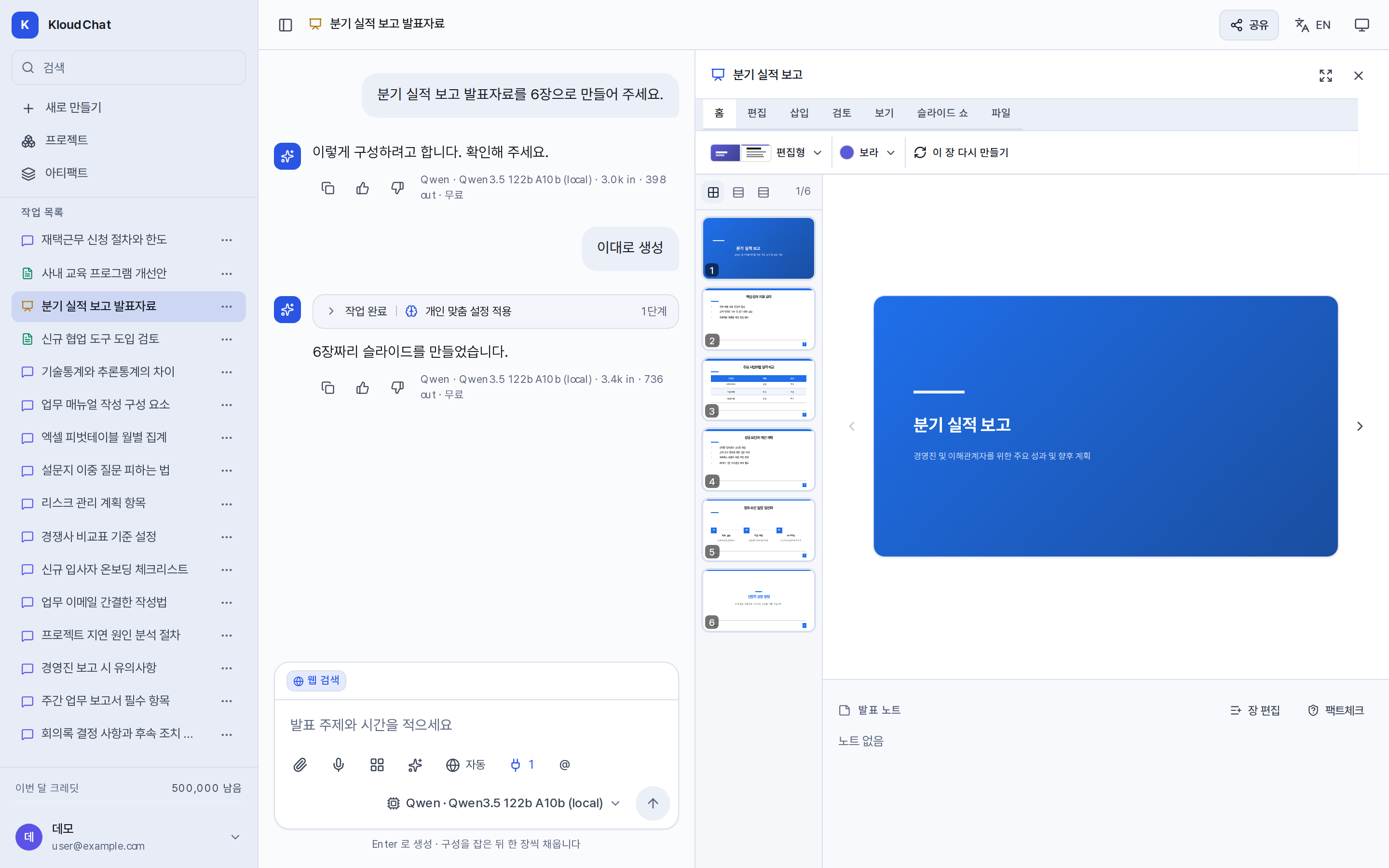
Items in the structure check
- Slide titles and their order
- How will this be used?: presenting with narration, or handing over the material only
The design is not chosen on the structure card. After writing, choose it in the panel from editorial, minimal, poster, split, dark, steel, warm, pastel, forest, academic, and monochrome.
Setting the number of slides
| Example input | What it does |
|---|---|
| "6 slides", "a 20-slide deck" | Writes the number of slides you set. The maximum is 50. |
| "a 20-minute presentation" | Calculates the minimum number of slides at one slide per two minutes. 20 minutes gives at least 10 slides. |
| Not specified | Writes 5 to 12 slides to suit the topic. |
If the deck runs to more than 6 slides, a table of contents is inserted as the second slide.
Slide types
The model chooses the type that suits the content. It uses cover, table of contents, item list, table (comparison), metrics (key figures), chart (when the material contains figures), diagram (flow and structure), and closing. You can set them in your request, for example "use a table for the comparison" or "include a flow chart".
Changing the design
In the Home tab of the panel you can change the design and the accent color, and run Redo this slide. If a design system is linked to the project, the deck follows its colors and typefaces.
Presentation mode
Switch to full screen from Slide show in the ribbon. Move between slides with ← and →, and exit with Esc. It provides a presentation timer, speaker notes shown with the N key, and a slide list.
Export
In File → Export, choose PowerPoint (PPTX), PDF (for presenting), or text (with notes). If there are slides at overflow risk, slides whose evidence needs checking, or unresolved review notes, it tells you before exporting. Copy the script copies the slide body text and the speaker notes at once. The dark impression applies to PPTX only, and PDF is output on a light background.
Revising
If you ask for something like "make slide 2 more concise", only that slide is written again. A request that changes the structure, such as "extend it to 20 slides" or "add a case study slide", proposes the structure again and waits for your approval. For details, see Revising by request. To edit sentences yourself or reorder slides, use the Output editor.