Storage
Two things live here: the pools that back user volumes, and the volumes themselves.
Storage pools
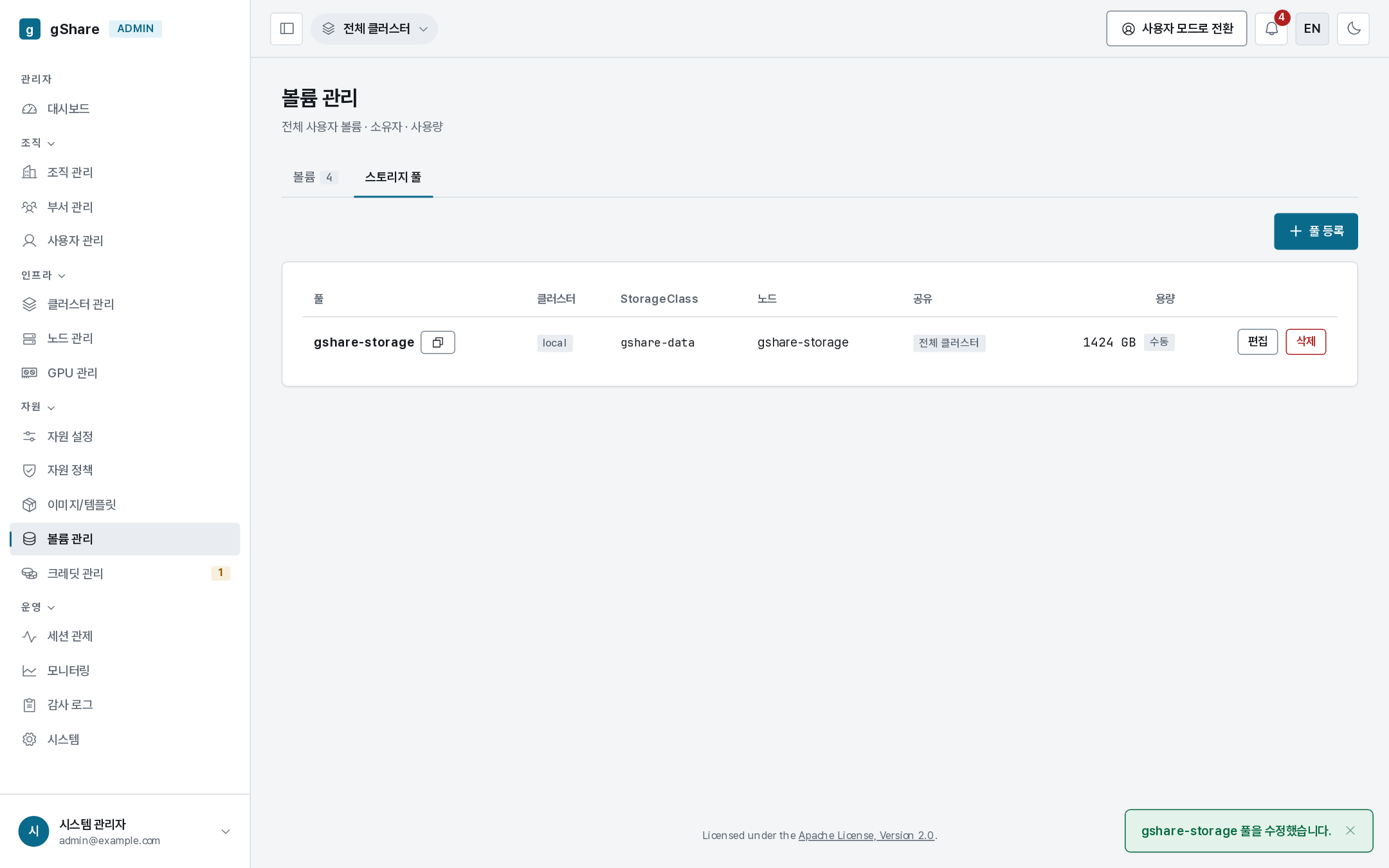
A pool is a registered object, not something inferred from node roles: the cluster its server sits in, the StorageClass that provisions from it, and its sharing scope (all clusters, or selected ones). The Storage pools tab lists them; the dashboard's storage tile and the capacity gate that admits new volumes both read this list — a server that is not registered here does not count.
Registering a server
The order is: label the node, install the driver, register the pool.
- Label the storage node
gshare.io/role=storage(the bootstrap script does this forSTORAGE_NODE), so it appears under Nodes with the Storage role. - Install the CSI driver and give the operator its StorageClass
(
operator.volumeStorageClass) — see Operations → Storage. - Register pool:
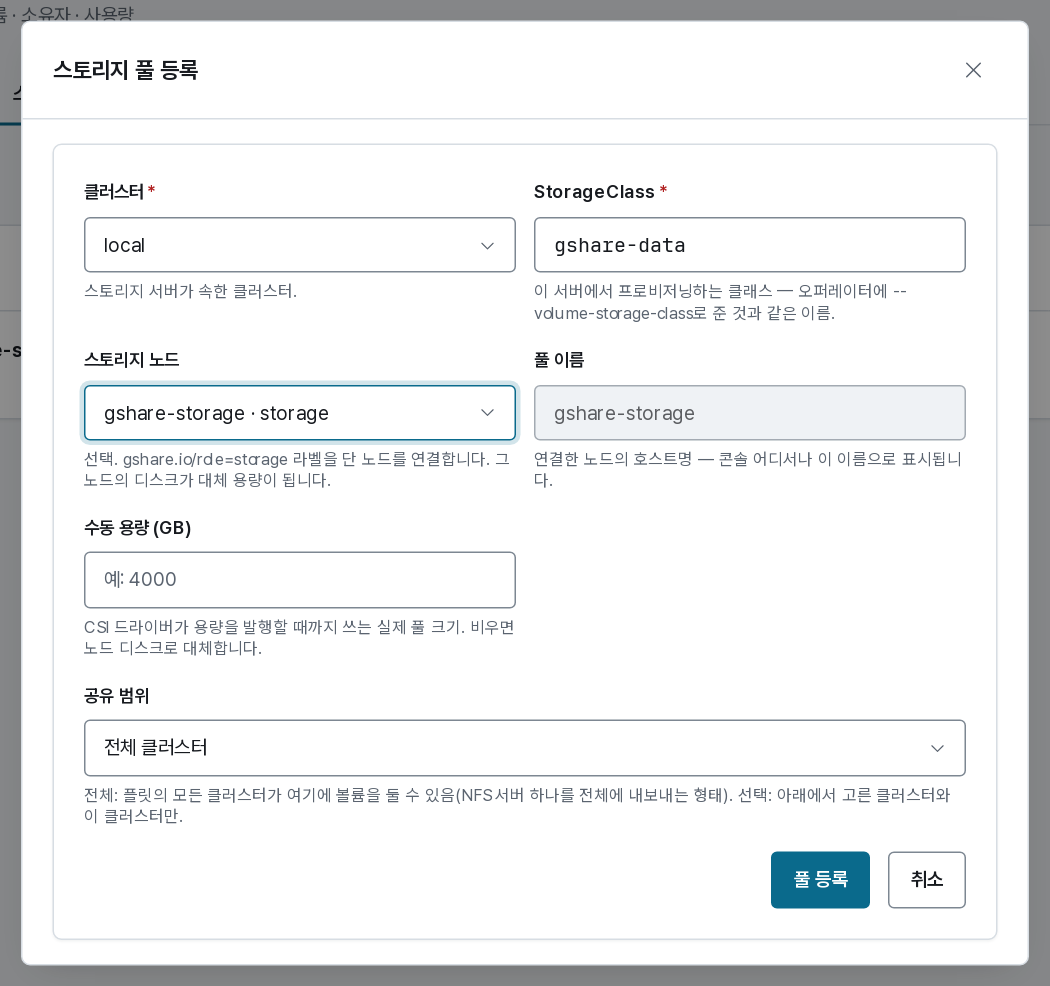
| Field | Meaning |
|---|---|
| Pool name | The linked node's hostname, always — typed only for a server the cluster never sees as a node |
| Cluster | The cluster the server sits in. Fixed after registration |
| StorageClass | The class that provisions from it — the same name the operator was given |
| Storage node | Optional. The labeled node; its disk becomes the fallback capacity |
| Stated capacity (GB) | The real pool size, used until the driver publishes one |
| Sharing | All clusters — every cluster may place volumes here; Selected — tick the clusters allowed, besides this one |
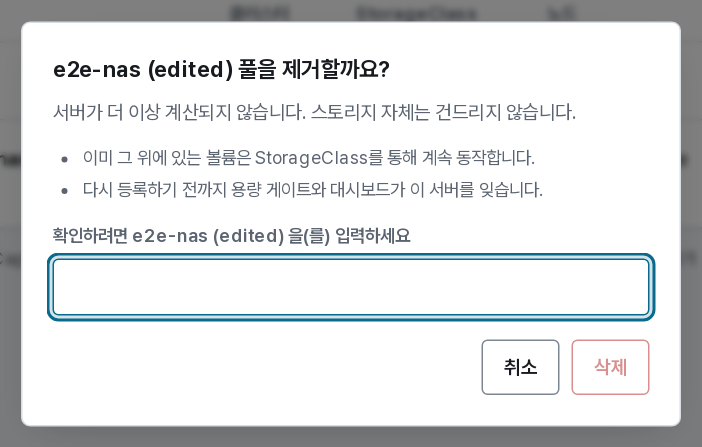
Edit changes everything but the cluster; Delete (typed confirmation) stops counting the server — volumes already on it keep working through their StorageClass, nothing on the storage is touched.
Where the capacity figure comes from
Each row shows the figure and its source, in order of preference:
- csi — the driver's own
GetCapacity, published asCSIStorageCapacityand read by the operator. The only automatic source. - manual — the figure stated on the pool. Set it when the driver publishes nothing.
- node disk — the storage node's system drive, labeled as the stand-in it is.
Several servers are several pools. A volume lives on exactly one, so the bound is the largest usable pool, never the sum. The operator-side detail — driver flags, NFS prerequisites, attaching a second cluster — is in Operations → Storage.
Volumes
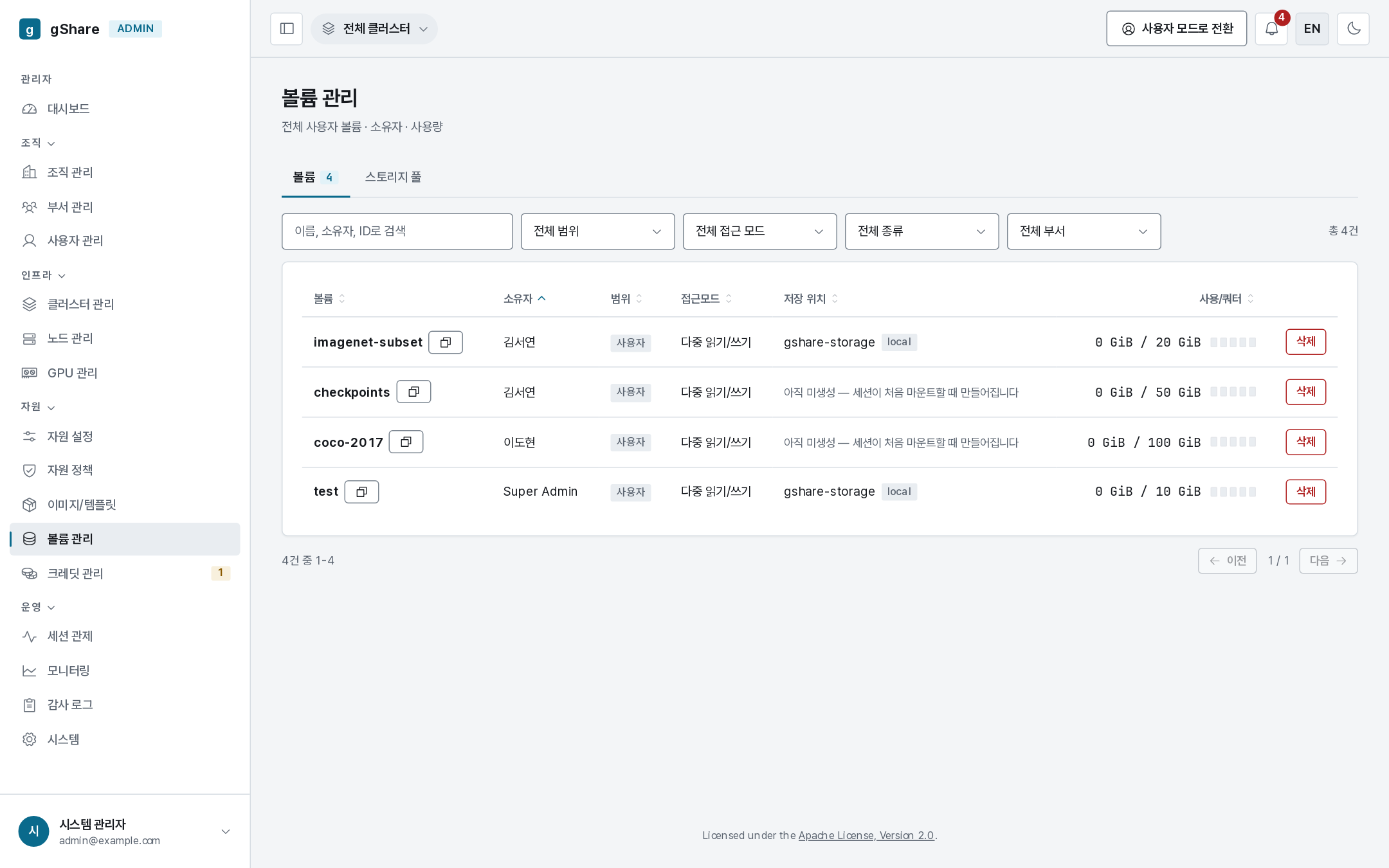
Every volume in the fleet, with owner, scope, type, access mode, usage against quota, and where its data lives — the storage pool (and cluster) whose server holds it. A volume no session has mounted yet has no claim and therefore no place; it reads not provisioned yet until the first mount creates it. With several storage servers this column is how you tell which one a volume — and its user — depends on.
| Action | Effect |
|---|---|
| Change quota | Raise a volume's quota — within the owner's storage limit; to go beyond it, raise their policy first |
| Lock | Refuse new mounts while keeping running sessions |
| Delete | Normal deletion — refused while a session has it mounted |
| Force delete | Terminates the sessions holding it, then deletes |
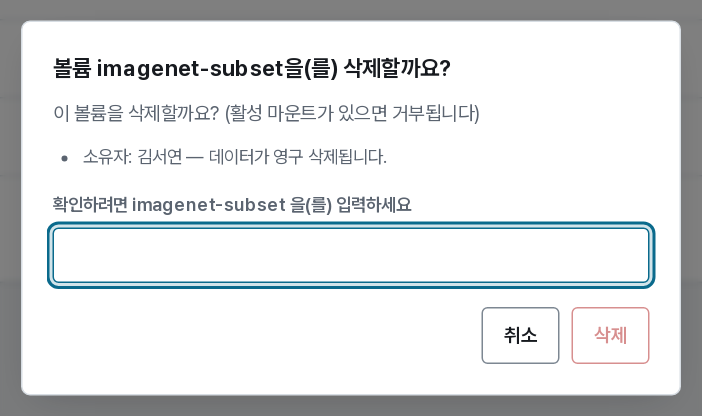
Force delete is the sharpest tool in the console: it ends other people's running sessions to remove a volume. The dialog names the owner and says so, and the audit entry records which sessions were cut. Reserve it for a storage server that is genuinely full and an owner who cannot be reached.
Running out of space
When the pool fills, the useful order is:
- Find the big ones — sort by usage; a handful of forgotten scratch volumes is the usual cause.
- Ask the owners — deleted-by-owner is always better than deleted-by-admin, and the console shows you exactly who.
- Lock rather than delete while you wait: it stops the volume growing without destroying anything.
- Tighten the storage limit in the policy so the next round does not happen, rather than repeating the cleanup.
Deleted volumes are reclaimed after api.volumeReclaimGraceHours (24h by default) — within that
window the data can still be recovered by an operator.