Adding users
Three ways in, depending on how many people you are onboarding and whether your site lets people sign up for themselves.
One at a time
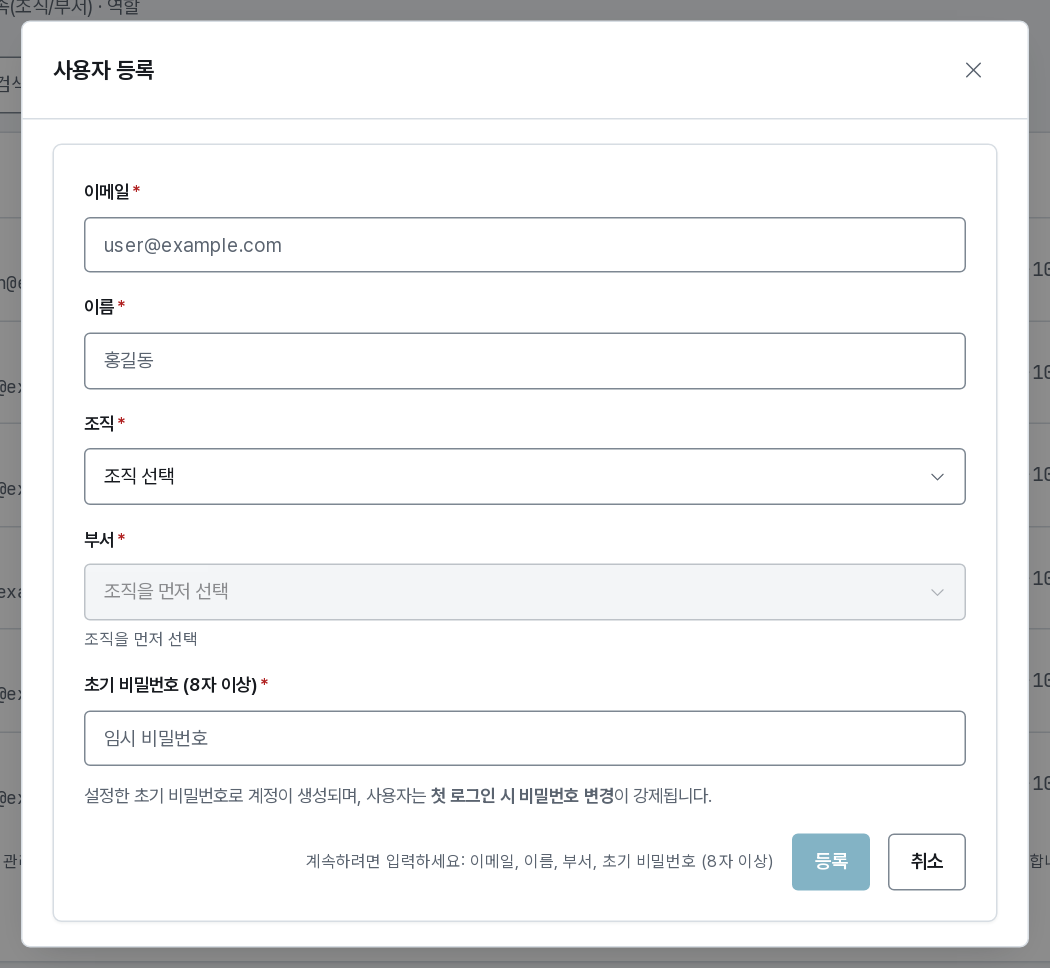
Add user asks for:
- Email — the sign-in identity, and unique across the platform.
- Name — what administrators and session lists show.
- Initial password — the user is forced to change it at first sign-in; you never see it again.
- Organization and group — sets credits, policy, and pool access from the start.
Every new account is a member. Group and organization administrators are appointed afterwards from Groups / Organizations.
The account is usable immediately.
In bulk, from CSV
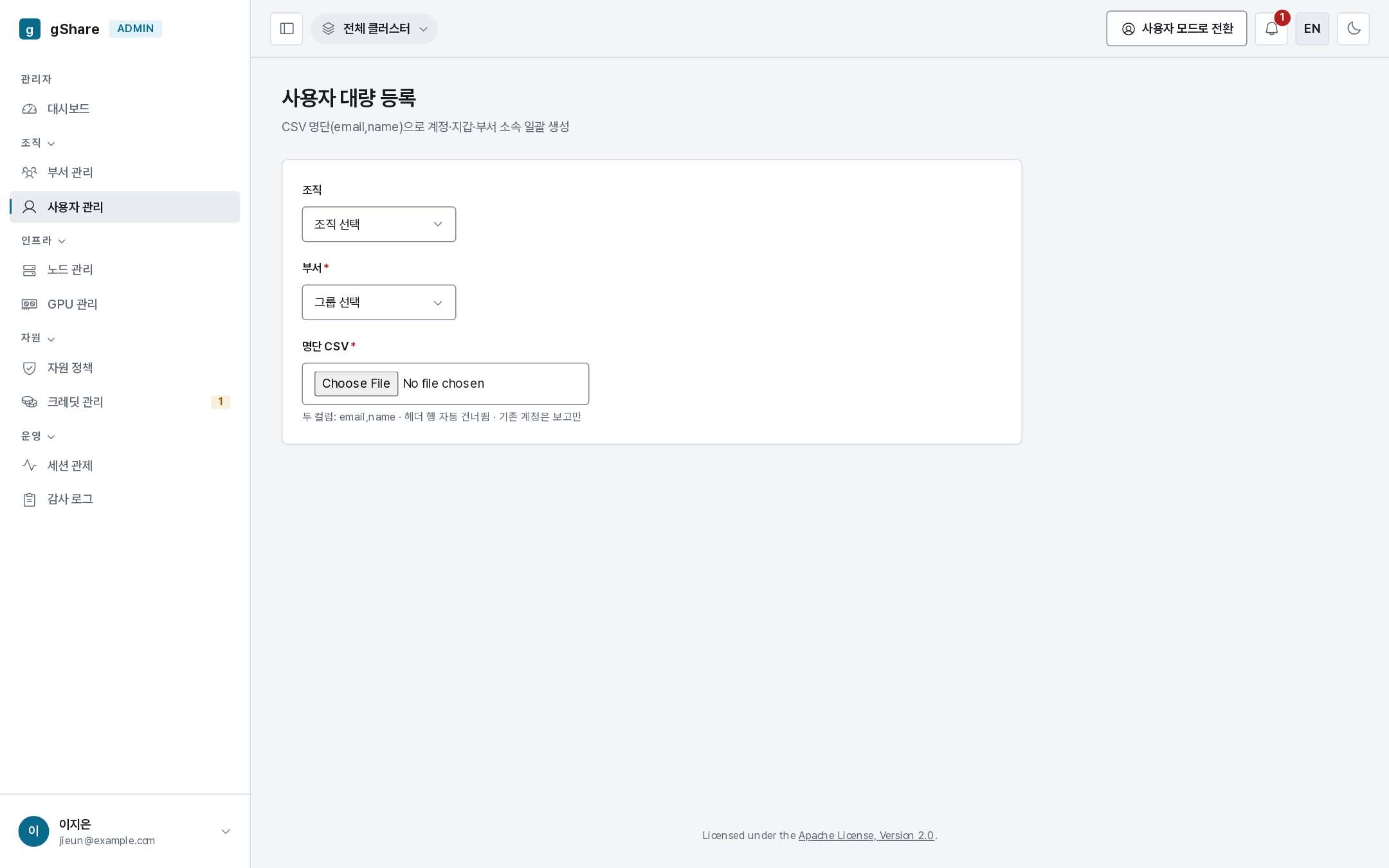
Bulk takes a two-column CSV — email,name (a header row is skipped automatically) — and
creates the accounts in one pass, all as members of the organization and group you pick on
the page. It is the right tool for a class or a new team.
The file is checked before anything is written: rows with a malformed email, a duplicate within the file, or a missing name are listed and excluded, and the rest go ahead. The result reports created / already existed / invalid per row; an account that already exists is left untouched.
Each new account gets a generated initial password. They are offered once, as a credentials file to download at the end of the import — save it then, it cannot be retrieved later.
Approving self sign-ups
When your site's sign-up policy is set to approval, people can register themselves and land in the list as pending. They cannot sign in until approved.
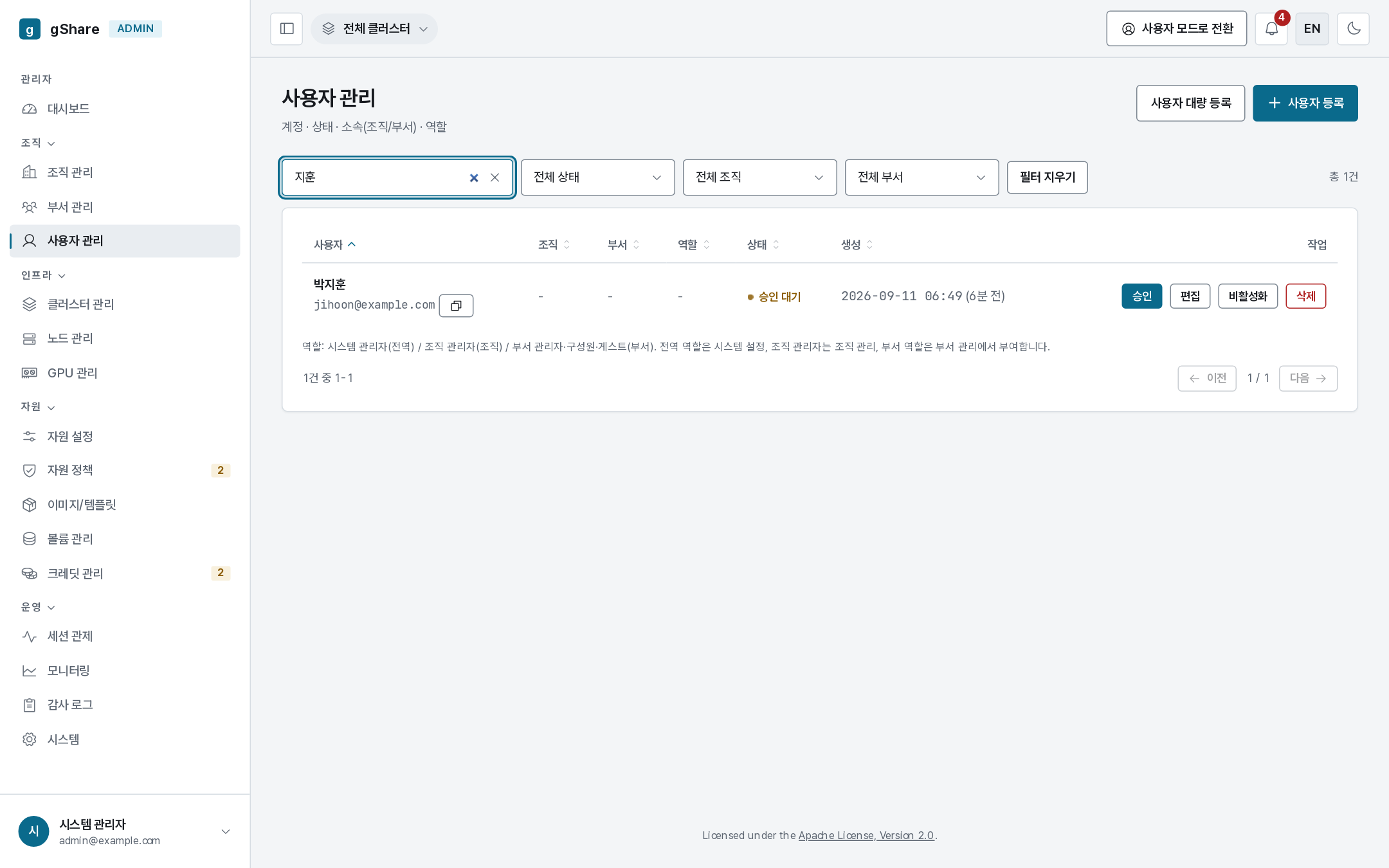
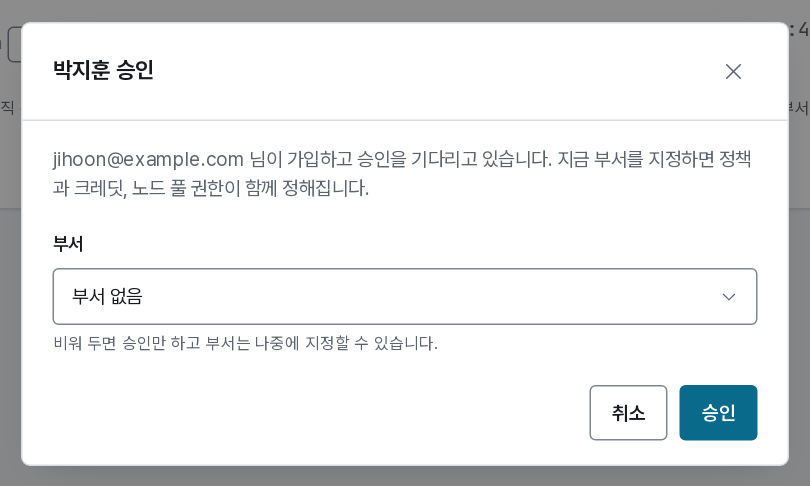
Approve asks one question: which group. Assigning it now is what gives the account its policy, its credit pool, and its node-pool access — approving without a group leaves the user able to sign in but unable to run anything, which is a support ticket waiting to happen.
There is no separate reject: to decline a sign-up, delete the pending account from its row. The person can register again.
The sign-up policy also takes a list of allowed email domains. Set it to your own
(example.com) so a stray address cannot queue for approval in the first place.
See System settings.