Resizing, locking, deleting
Changing the quota
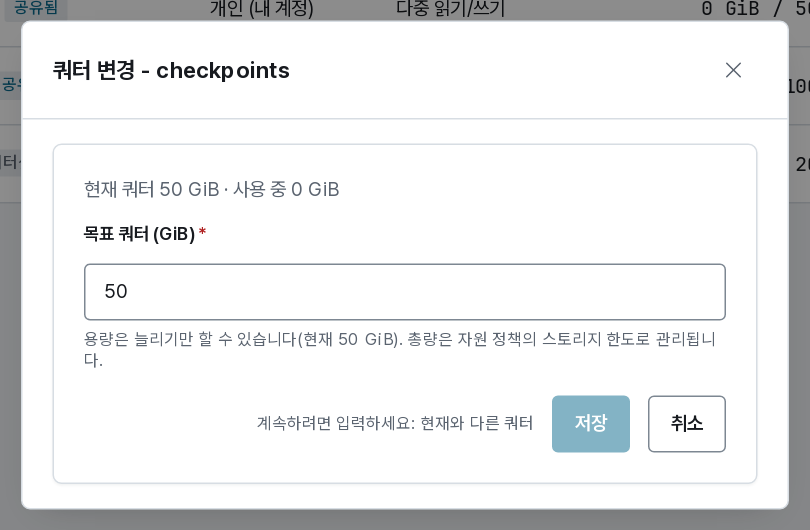
Change quota raises how much the volume may hold. The dialog shows the current quota and what is stored, and the new figure has to clear three bounds:
- not below what is stored — shrinking is refused, because the data is already there;
- within your policy's storage limit — the total across all your volumes;
- within what the storage server physically has free.
The change applies to the live volume. A session with it mounted sees the new size without restarting.
If your policy's storage limit is what blocks you, request more from Account → my limits rather than deleting data.
Locking

Lock refuses any new mount. Sessions that already have it open keep working.
It is there for two jobs:
- before deleting — lock first so nobody starts a new session on it while you check what is inside;
- while reorganising — moving files around under a job that is reading them makes for confusing bugs.
Unlock puts it back. The list shows a locked tag until you do.
Deleting
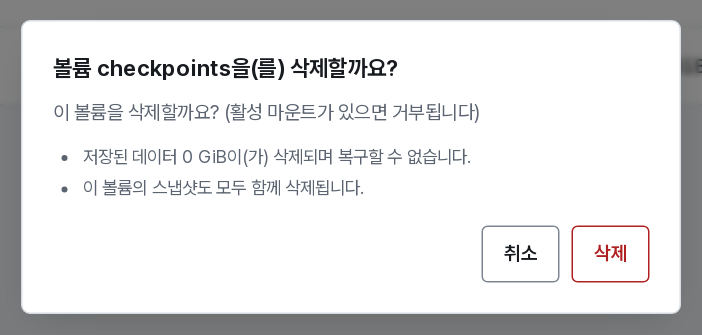
Delete asks you to confirm, naming what is lost: the data stored in it. The volume must have no active mounts — with one, the delete is refused and the expansion row shows which session to end first.
What happens next:
- The volume disappears from your list at once and its quota stops counting against your policy limit.
- The underlying storage is kept for a short grace period configured by your site (24 hours by default), then reclaimed for good.
Within that window an administrator can still recover the data. After it, nothing can.
The confirmation is the last stop. Copy anything you are unsure about into another volume first — a volume costs you nothing but quota.
Housekeeping that helps
- Delete scratch volumes when an experiment ends; they are the usual reason a storage limit fills up.
- Keep datasets read-only and share them instead of copying them per person — one 100 GiB copy beats five.
- Check the Quota column in the list now and then: the gauge makes a volume at 95% obvious
long before a job fails with
No space left on device.