Using a volume in a session
A volume is only reachable from inside a session. You choose the volumes when you create the session — step 4 of the wizard.
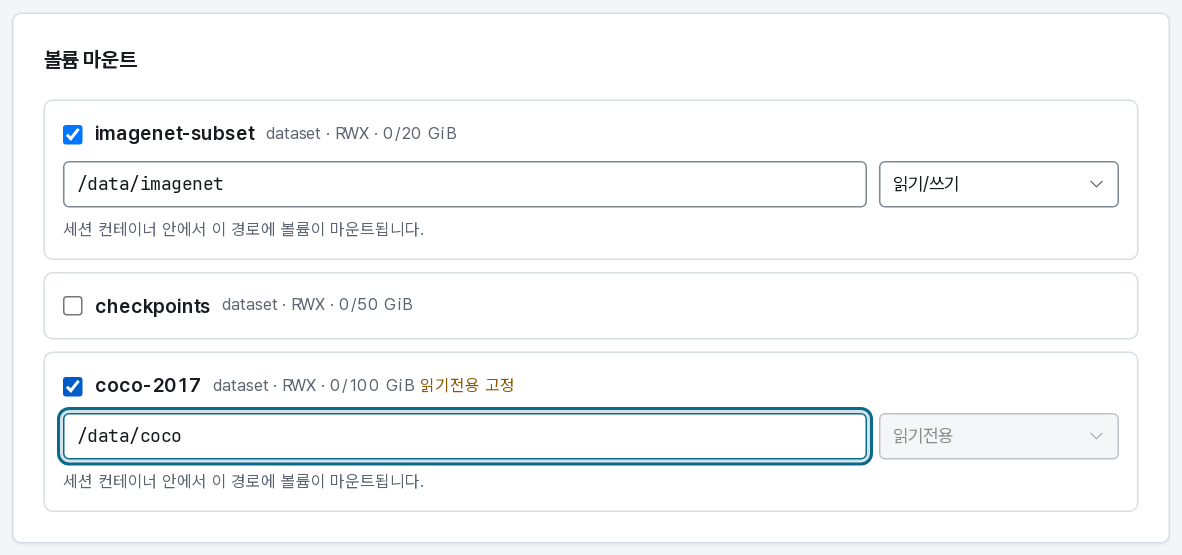
For each volume you tick:
- Mount path — where it appears inside the container. Default
/data/<type>; give each volume its own path so two mounts never collide. - Mode — read/write or read-only. A volume shared with you read-only, or created read-only, is pinned to read-only.
Paths must be absolute, plain ASCII (A-Z a-z 0-9 . _ -), and outside system directories
(/etc, /usr, /bin, /proc, /dev …). The wizard refuses an invalid path as you type.
Inside the session
ls /data/imagenet        # the volume, at the path you chose
df -h /data/imagenet     # shows the quota, not the whole storage server
The quota is enforced by the storage layer: writing past it fails with No space left on device, and no other volume is affected.
Everything outside a mounted path — the home directory, /tmp, installed packages — lives
on the container's scratch disk and disappears when the session ends. Notebooks saved in
JupyterLab's default folder are on the scratch disk unless you moved them.
Mounting the same volume twice
A read/write volume can be mounted by several sessions at once (it is RWX storage). That is useful — one session preprocesses while another trains — but gShare does not coordinate the writes: two sessions writing the same file is your problem, not the platform's.
The common safe pattern is one writer and many readers: mount it read/write where you build the dataset, read-only everywhere else.
Who has it open
Click a volume in the list to expand it.

The panel first says where the volume's data lives — the storage server it was created on, or not provisioned yet if nothing has mounted it — and then lists the sessions that hold the volume right now, with their owner and mount mode. It is also the answer when a delete is refused: a volume with an active mount cannot be deleted, and this is where you find out which session to end first.
Changing what a running session mounts
You cannot. Mounts are fixed when the session is created — terminate it and create a new one with the mounts you want. The data is untouched by that; it belongs to the volume, not the session.