Signing in
Open the console URL your administrator gave you and sign in with your email address and password. Accounts are normally created by an administrator.
If your site allows it, the sign-in screen also has a Sign up tab: name, email (from an allowed domain) and a password of at least eight characters. Depending on the site's policy the account is usable at once, or sits as pending until an administrator approves it and assigns you to a group — you cannot run anything until then.
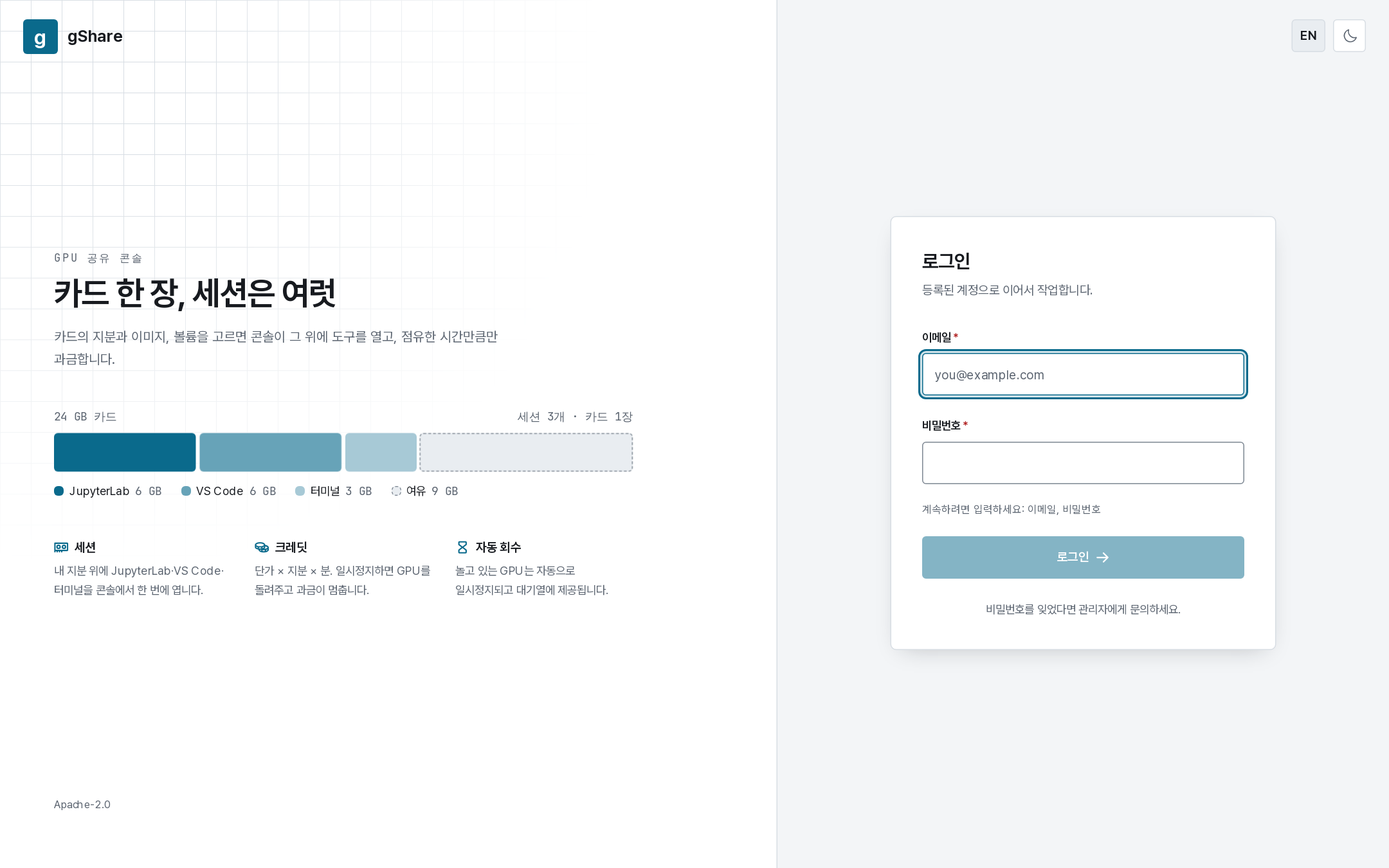
First sign-in
The first time you sign in you are asked to change the password your administrator set. The console will not let you go anywhere else until you do. Pick a password only you know; administrators can reset it but never see it.
Language and theme
The top bar has two toggles that apply only to your browser:
- EN / KO switches the console language. Every screen, message, and error is available in both.
- The moon / sun toggle switches between the light and dark theme.
The cluster selector
Next to the sidebar toggle is a pill showing which cluster the console is looking at (All clusters by default). It narrows every list, dashboard, and the session wizard's default to one cluster. Most installations have a single cluster, in which case you can leave it alone — it is there so the answer to "why do I only see two nodes?" is always visible in the bar.
Signing out
Open the menu under your name at the bottom of the sidebar and choose Sign out. A session token that expires (or an administrator disabling your account) also signs you out; you simply sign in again.